Overview
The DMS Factbox (also called Dropform or Infobox) presents your DMS documents in a tree structure. The factbox area can be used to drag and drop files into M-Files. In Business Central, only the hyperlink, accessible via the card view, remains.
The corresponding metadata is based on the respective data set the user has selected (e.g., the corresponding sales order from Blütenhaus GmbH in the image below).
The DMS FactBox lists all documents that have already been uploaded. New documents can be sent to your SharePoint via drag-and-drop or via the plus symbol as well as via the Business Central functions Print, Release & Post (configurable via the DMS Report Archive Setup).
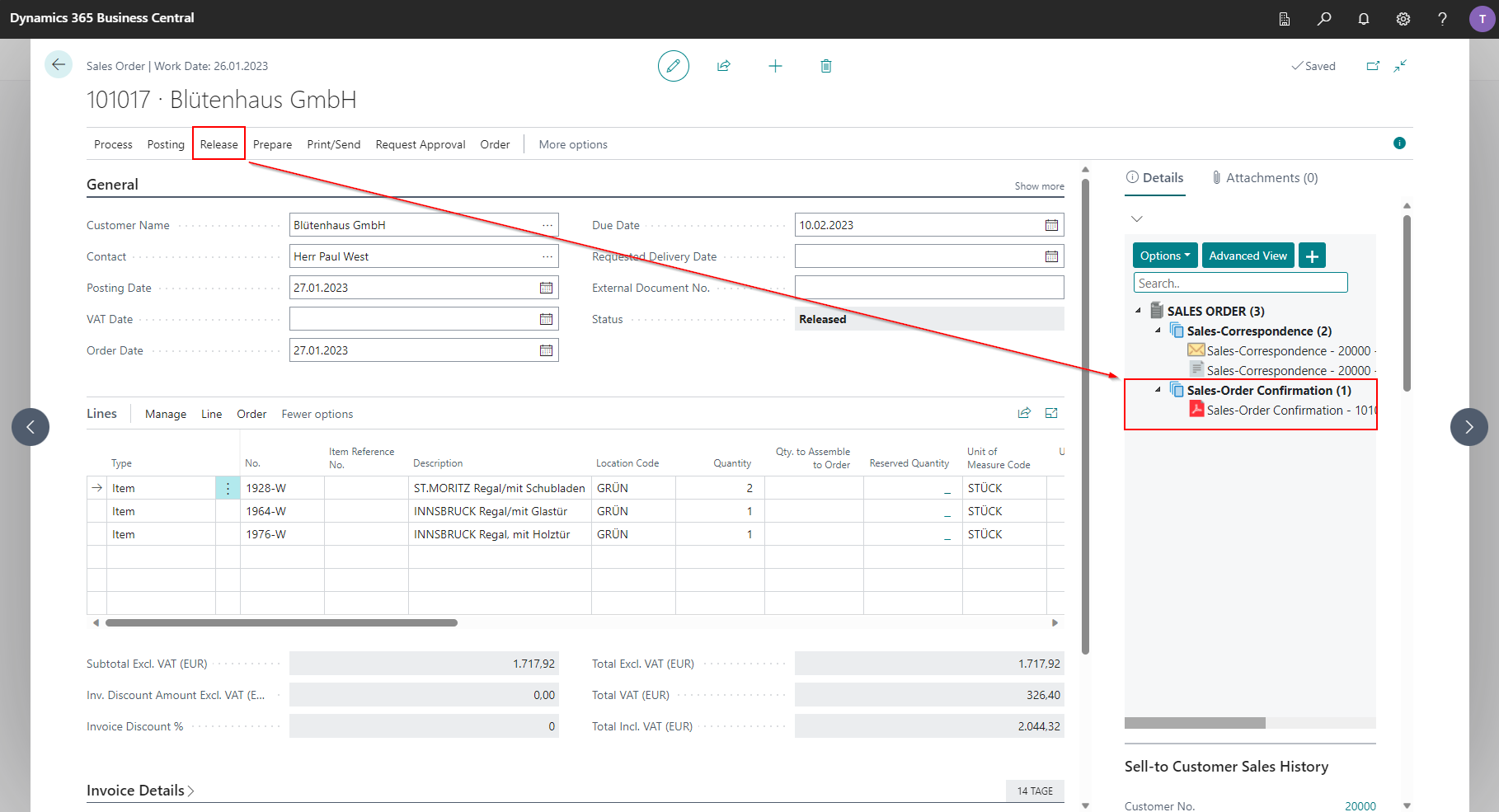
Structure of the Dropform


The DMS Infobox is made up of the following components:
-
Action Bar - this provides several buttons (from left to right):
- Show more options - this button offers more options in the form of a drop-down menu. The options are explained below.
-
Show sorting options - this button offers sorting options in the form of a drop-down menu:
-
Grouping
- Ascending/descending (Alphabetically) (Toggle) - sorts both grouping levels alphabetically in ascending or descending order
- M-Files Class Group Order (Toggle) - takes over the sorting of the grouping levels from M-Files
Grouping level
Grouping levels and their combinations are explained further down on this page.
-
Documents
- Ascending/Descending (Last modified at) (Toggle) - sorts the documents in ascending or descending order according to their "Last modified on" property
- Ascending/Descending (Created at) (Toggle) - sorts the documents in ascending or descending order according to their "Created at" property
-
-
Open Advanced View - opens the advanced view in a new BC window.
- Upload document - opens a file storage as a dialog window. A file can either be dragged there directly or selected from the local computer.
-
Search field - enables document search within the DMS Factbox.
Searching
- The search is based on the complete document display text. This means you can also search for file name extensions (file types), document status or workflow status.
- The file contents cannot be searched via the search field.
-
Display/Upload Area - this area takes up the most space in the DMS Factbox. Your DMS documents and, if applicable, their workflow status are displayed here. Depending on your personal preferences, they are grouped in one or two levels and sorted chronologically. The entire DMS Factbox also acts as an upload area, allowing documents to be easily uploaded using drag-and-drop.
- Slider - the slider allows you to adjust the width of the infobox area (and among others, the width of the dropform) as you wish. The slider is linked to the dropform and is only displayed on pages where the dropform is integrated, loaded and active.
More options (drop-down menu)
The drop-down menu is divided into several action categories using headings:
- Incoming documents
- Assign barcode - A list of available barcodes will be opened. The barcode that should be assigned to the current record can be selected from this list.
- Create Barcode - Creates a barcode for the selected record. When importing a document via the DMS Inbox, the document can be automatically assigned to the record.
- Workflow
- Update All Workflow Statuses - updates all documents associated with a workflow status.
- M-Files
- Open M-Files Object - if there is an object related to the current BC record in M-Files, executing this action will open it in M-Files.
- View
- Show all documents (Toggle) - shows all or fewer DMS documents in the DMS factbox. The visibility limit can be set on the DMS Setup page. It applies per (currently deepest) grouping level.
- Expand all levels (Toggle) - expands or collapses all grouping levels.
- Group Settings (Dropdown) - provides settings for the grouping levels.
+ First grouping level
+ Year - groups the documents by the year they were last modified. The second grouping level here is the M-Files class.
+ Year and Month - groups the documents by the year and month they were last modified. The second level here is the M-Files class.
+ M-Files class - groups the documents according to their M-Files class. The second level here is the year.
+ M-Files class group - groups the documents by M-Files class group. The second level here is the M-Files class.
+ Second grouping level + Show/Hide (Toggle) - shows or hides the second grouping level.
Multi-Upload
In addition to uploading a single file, it is also possible to upload multiple files or entire folders simultaneously. When selecting multiple files/folders, an overview page opens that displays all the files to be uploaded.
File number limitation
The number of files that can be uploaded at once via multi-upload is determined by the folder structure:
- If there are files and folders in the root directory, only the first 100 files in the root directory are uploaded and no files from the subfolders.
- If there are fewer than 100 or no files in the root directory, all files from the subfolders - without limitation - are uploaded.
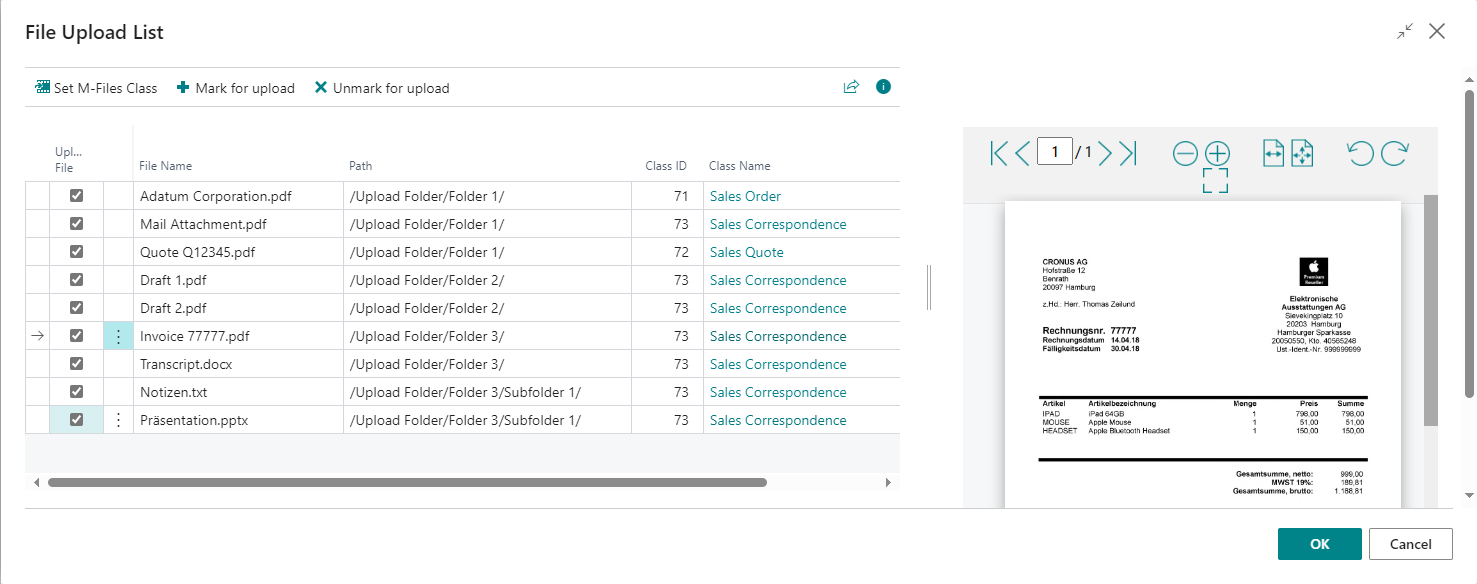
Upload Overview Page
- Decision before Upload: On the overview page, you can choose whether to upload all or only specific files. Removing or setting the checkmark in the Upload file field controls the selection.
- Joint Editing of Settings: Multiple files can be selected and edited together or released for upload.
File and Class Settings
- Editability of the filename: The file name can be edited or fixed depending on the DMS Table Setup.
- Document Class: A specific document class can be selected for each file. If a default class is stored in the DMS table setup, it will be automatically preselected but can be manually changed. Using the action [Select M-Files Class], the class can be set for all selected files simultaneously.
Duplicate Check
A duplicate check ensures that no duplicate files are uploaded. If the file name is identical, the DMS connector indicates whether a file with this name has already been uploaded or if duplicates are present among the files to be uploaded.
File Overwrite and New Creation
- User Decision: If configured in the DMS table setup, the user can decide whether an existing document is overwritten or a new one is created.
- Default Settings: If the table setup specifies a fixed rule (always overwrite or always create new), this decision cannot be changed by the user.
Document Preview
In the Factbox area, a preview of supported file formats can be displayed so that the files can be viewed directly before uploading.
Context menu
Right-clicking on one of the uploaded documents opens up a context menu with the following functions:
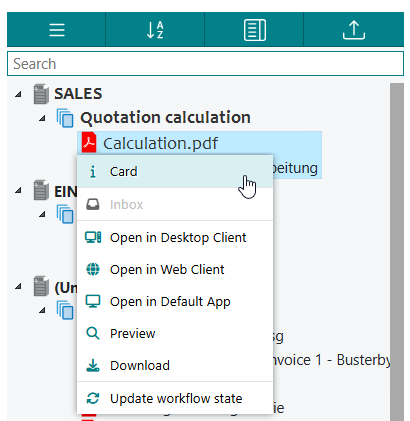
- Card: opens the document card of the respective file in Business Central
- Inbox: opens the inbox entry for the document
-
Open in Desktop Client: opens the respective document in the SharePoint web client
New Desktop Client
Opening the document in the new M-Files desktop client is currently not supported, as the function has not yet been implemented by M-Files.
-
Open in Web Client: opens the respective document at the M-Files web client
-
Open in Default App: opens the respective document type with the default app that is stored for the file type
Requirement
To open the document in the default app, the M-Files desktop client must be installed on the computer.
-
Preview: opens the advanced view and displays the document in the document preview. The action is disabled for unsupported file types.
- Download: downloads the file
- Update workflow state: updates the workflow state of the document
Overview of the grouping levels
| 1. Grouping level | AL Format | Example | 2. Grouping level |
|---|---|---|---|
| Year | <Year4> | 2024 | M-Files Class |
| Year and Month | <Year4>-<Month,2> (<Month Text,3>.) | 2024-01 (Jan.) | M-Files Class |
| M-Files Class | Text | Sales Invoice | Year |
| M-Files Class Group | Text | SALES | M-Files Class |
User-specific settings
The following DMS Factbox settings are stored user-specifically in the browser cookies. This means that each user can select these settings in the way that suits them best or how they are most comfortable working with them.
- Show all/less documents (Toggle)
- Expand/collapse all levels (Toggle)
- Grouping settings - both the selected grouping level constellation and whether the second grouping level is shown or hidden are saved.
- Sorting settings - the sorting settings for the grouping levels as well as for the documents, and whether the M-Files class group level is active, are saved.
Cookies
Please note that depending on your web browser settings, cookies may be deleted. This can happen, for example, when closing the web browser. If you delete the cookies manually, the user-specific settings will also be reset. If you notice that the settings have not been saved or have been reset, check your web browser settings.