DMS M-Files Vault Setup
The DMS Vault setup establishes the connection between Business Central and M-Files through the REST API.
Setting up a new Vault
Follow the steps below to configure a new Vault setup.
- Enter "DMS Vault Setup" in the search bar.
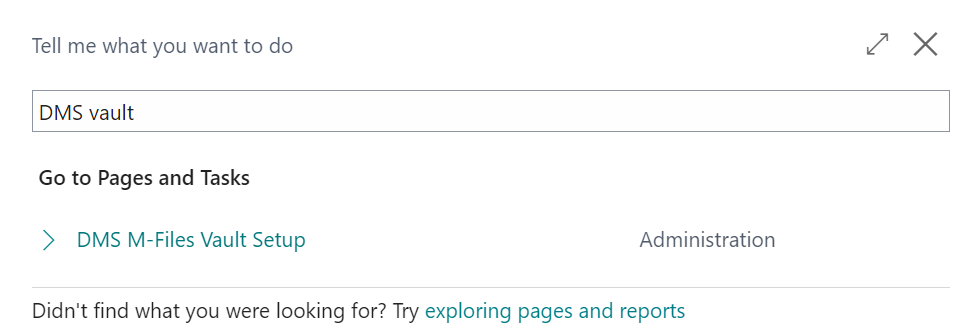
-
Click [New] to configure a new Vault setup.
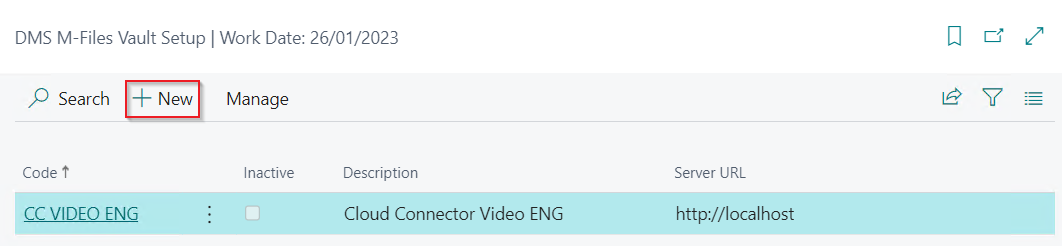 (List of available Vault setups)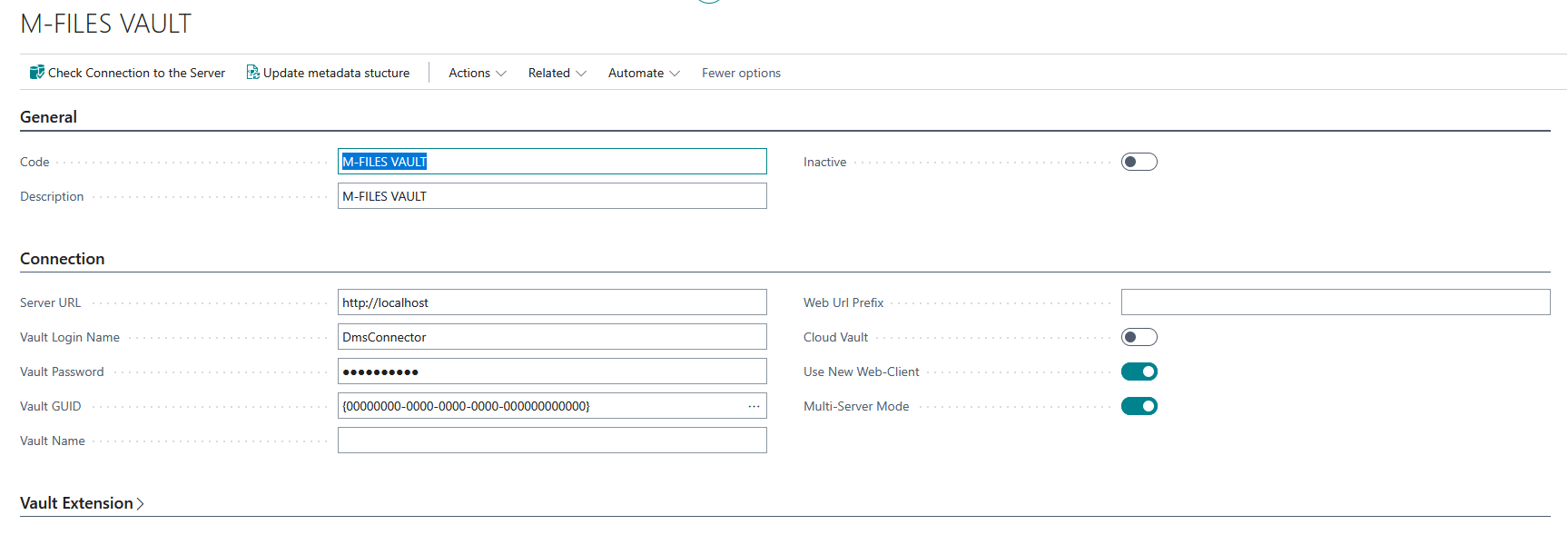
-
Follow the steps below:
General tab
- Code: Enter a code for the connection, for example, DEMO-Cloud.
- Description: Enter a description for the connection, for example, Cloud Test Vault.
Connection tab
- Server URL: Enter the URL of the M-Files server. The server URL requires "http://" or "https://" as a prefix.
- Vault Username: Enter the login name for the M-Files user of the DMS Connector. This license is required for uploading data. For more details, see "Checking the license".
- Vault Password: Enter the password for the M-Files user of the DMS Connector.
- Vault GUID: Enter the specific M-Files Vault GUID.
- Cloud Vault Specify if the M-Files Vault is a Cloud Vault or not.
-
Click [Check connection to the server]
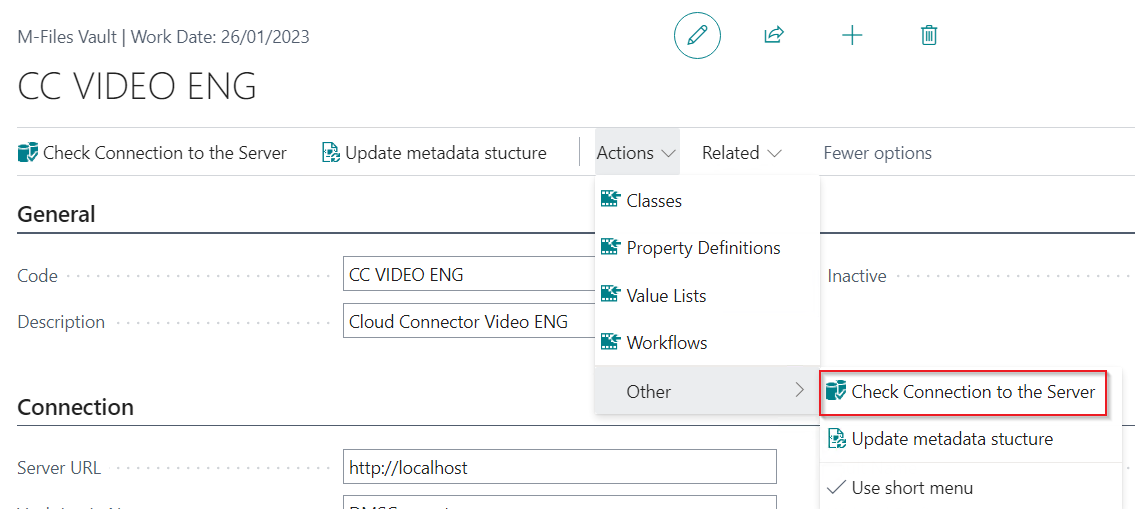
Your Vault setup will be tested in the background. If the connection is successful, you will receive corresponding information. If no successful connection is established, repeat the previous steps and check your details.
-
Vault Extension tab
This checks if the Vault Extension app is installed. If the installation was successful, the version number of the app will be displayed. For details on installing the Vault Extension, see The Installation of the Vault Extension App for M-Files.
-
Perform the [Update Metadata Structure] action from the navigation bar.
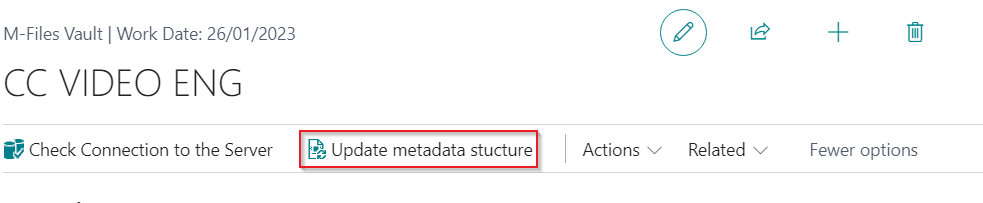
Updating the metadata structure updates the existing structure in the DMS Connector or Business Central from M-Files. This includes classes, properties, value lists, and workflows. If there are any changes to the metadata structure in M-Files, the metadata structure should also be updated here.
Actions
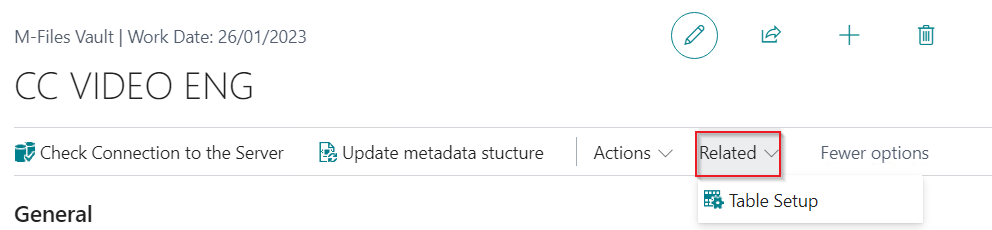
You can access various other tables/facilities via [Actions] and [Related] in the navigation bar:
M-Files Classes
Shows the imported class structure and, if applicable, the corresponding workflow.
- ID: The M-Files ID of the class
- Class name: The name of the class
- Alias: The M-Files alias of the class, synchronized from M-Files during metadata structure updates.
- Workflow ID: The ID of the applied workflow
- Workflow Name: The name of the applied workflow
- Class group (DrillDown): Specifies how many class groups the class is part of
- Reset workflow when overwriting: If a document of this class is overwritten via the connector, the workflow for this document is reset so that the workflow starts from the beginning.
- Synchronized: Last synchronization date of the class
M-Files Class Groups
Shows the class groups from the imported class structure, if applicable.
- Name: The name of the class group
Classes
Displays the classes belonging to the class group.
- Class ID: The M-Files ID of the class
- Class Name: The name of the class
- Class Group Name: The name of the class group
M-Files property definitions
Lists all M-Files properties.
- ID: The M-Files ID of the property
- Property Name: The name of the property
- Alias: The M-Files alias of the property definition, synchronized from M-Files during metadata structure updates.
- Automatic Value: Specifies whether the property is calculated automatically
- M-Files Datatype Name: Specifies the M-Files data type of the property
M-Files value lists
Manages the value lists created in M-Files.
- ID (DrillDown): The M-Files ID of the value list
- Property Name: The name of the value list
- Alias: The M-Files alias of the value list, synchronized from M-Files during metadata structure updates.
- Synchronize value list (DrillDown): Specifies whether an M-Files value list is filled with values from a Business Central table
M-Files Workflows
Manages the workflows created in M-Files.
- ID (DrillDown): The M-Files ID of the workflow
- Property Name: The name of the workflow
- Alias: The M-Files alias of the workflow, synchronized from M-Files during metadata structure updates.
Workflow states
Displays the associated M-Files workflow states.
- ID: The M-Files ID of the workflow state
- Workflow State Name: The name of the workflow state
- Start State: Indicates whether the state is the start state
- End State: Indicates whether the state is an end state
- Count of files in Workflow State (DrillDown): Indicates how many files are currently in the respective workflow state
- Behaviour when posting: You can control what behaviour should occur when posting if a document on a purchase invoice or purchase credit note is in this workflow status. For example, posting and/or releasing can be prevented as long as the workflow state of the document is not in a certain state.
M-Files Table Setup
Shows the Table Setups for the current vault.