DMS Inbox Setup
General information about the DMS Inbox Setup
Documents saved in M-Files are imported via the DMS document inbox setup and then assigned manually or automatically to Business Central processes. The assignment is made via DMS barcodes.
Process
Scanned documents are uploaded in M-Files. The barcode is created either manually or automatically (e.g., via Barcode OCR) and added as a property for the respective document. These documents are then imported via a filter defined using the DMS Connector.
Assignment via Barcodes
Barcodes can be generated on a Business Central record using the [New barcode] function via the DMS Factbox. When importing documents with this barcode, these documents are then assigned directly to the process. The DMS document inbox automatically attempts to assign the documents to the Business Central processes using the barcode. If no automatic assignment is possible, the user must make the assignment himself using the [Assign barcode] function via the DMS Factbox.
If the barcode is assigned to a Business Central record, the system checks whether the class of the document exists in the associated DMS table setup. If this is the case, the same class is used and only the metadata is updated. If the class was not found in the DMS table setup, you must select which class it is.
Setup
You can find the setup by entering "DMS Inbox setup" in the search. This will take you to the overview of set up voucher input functions.

General tab
Setup of basic parameters:
- Barcode number series: If a new barcode is generated for a Business Central document, a new number is generated from this number series. This barcode is required for assignment to the Business Central document.
- Display DMS barcode field in journal batch: If documents from the DMS document receipt are to be assigned in the Business Central journal batch, this checkbox must be activated. The DMS barcode field can then be used to assign DMS barcodes to the line.
Line setup
Setup of the corresponding M-Files table setup, i.e. to which Business Central table this setup should refer or to which Business Central table the documents should be linked.
- Code: Assign a freely selectable code for the assignment.
- Activated: Indicates whether the line for the DMS document inbox is activated.
- M-Files Vault: Indicates to which M-Files Vault the line belongs.
- Object import setup: An object import setup is set. This is required to query in M-Files which documents are to be imported into the DMS inbox setup(see DMS Object Import Setup). Only object import setups that use the "Inbox" usage can be selected.
- Last Sync: Indicates the last time M-Files was checked for changes and documents were imported.
- Barcode property & property name: If the barcode, which is required for the assignment to Business Central documents, is in a property on the document, this property can be specified here. If no property is specified, the document ID from M-Files is used as the barcode.
- Automatically Register Documents are only temporarily assigned to a document and must then be registered so that the documents are visible on the document. If automatically register is active, the documents are registered directly when they are assigned to the record and are visible on the corresponding record. If this is deactivated, the documents are only assigned to the record first, but are not yet visible on the record. The documents are only displayed on the record when registration is triggered in the record receipt card.
Functions via the ribbon
- Start import: The import can be carried out manually via the "Start import" action in the lines. The object import with the use "Receipt" can only be started via this action.
Document Inbox
You can find the overview of the imported documents by entering "DMS Inbox" in the search.

Overview of actions
- Delete: Deletes the currently selected document from the document inbox.
- Setup: Opens the DMS inbox setup.
- Barcodes: Opens a list with the existing barcodes in the system.
- Download file: Downloads the currently selected file to the PC.
- Open data record: If the document is linked to a Business Central data record, the corresponding data record is opened.
- Archive: After registration, the data record is moved to the incoming document archive.
- Remove assignment: If a Business Central data record has been incorrectly assigned to the document, the assignment can be removed again via the action.
- Register: When registering, the document is attached to the Business Central document, the document's metadata is updated and the entry is moved to the incoming document archive.
Overview of columns
- Barcode no.: If a barcode was recognized for this document during import, it is displayed. Otherwise, the document ID from M-Files is used as the barcode.
- DMS ID: Displays the document ID from M-Files.
- Filename: Displays the file name of the file with which this file was imported.
- OK: If the document has been linked to a Business Central data record and is ready for registration, this check mark is displayed as active.
- Assigned data record: Displays the name of the Business Central data record if the document has been linked to one.
- File path: Shows the link to the document in M-Files.
- Class: Displays the M-Files class of the document with which the document was imported from M-Files.
Setup job queue entry
If the import is to take place automatically on a regular basis, a separate job can be stored in the task queue for this purpose.
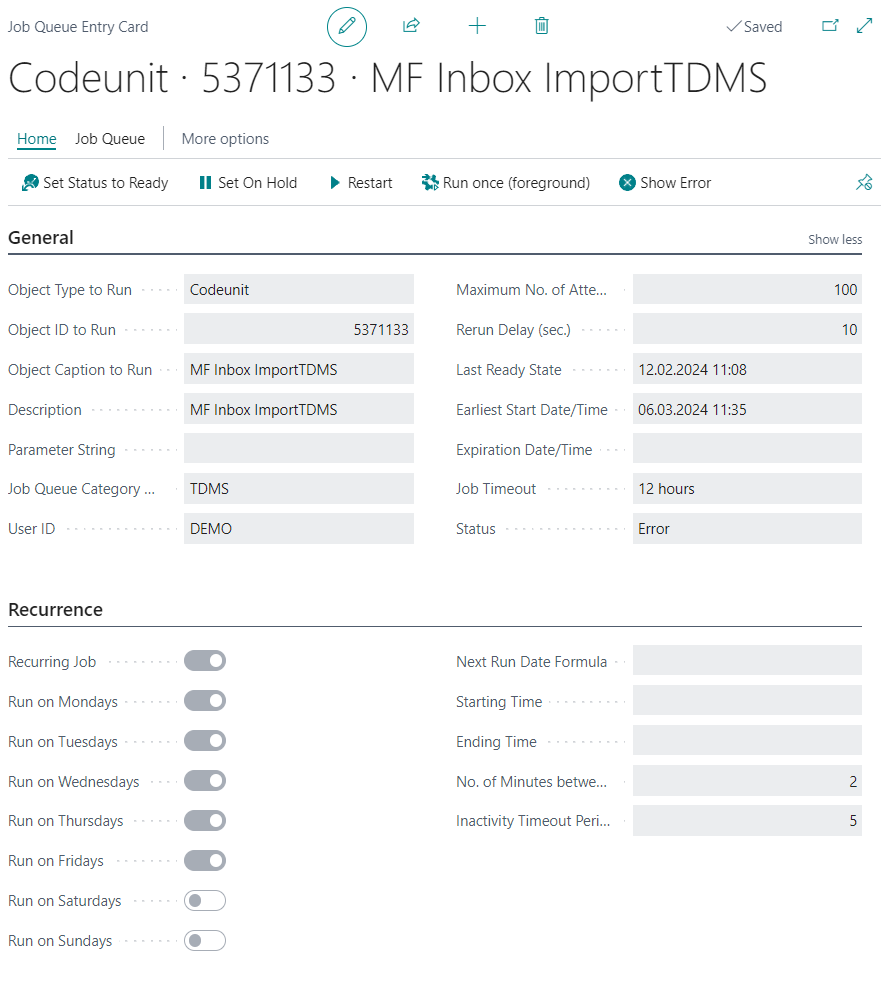 The Codeunit 5371133 (MF Inbox ImportTDMS) must be set up for this. The screenshot shows an example setup.
The setup of the repetition is the responsibility of the administrator. If a large number of documents have to be imported frequently, you should check whether it makes sense to run the job less frequently and possibly outside productive time.
The Codeunit 5371133 (MF Inbox ImportTDMS) must be set up for this. The screenshot shows an example setup.
The setup of the repetition is the responsibility of the administrator. If a large number of documents have to be imported frequently, you should check whether it makes sense to run the job less frequently and possibly outside productive time.