DMS User Setup
General information about the DMS user setup
TThe DMS user setup ensures that a user in Business Central has the right to delete objects in M-Files.
For more efficient use of both systems in operations such as "Sales Orders" or "Purchase Invoice Approvals", it is useful to link BC users with M-Files employees.
From the DMS user setup in BC, employee objects can be created in M-Files. A DMS user in BC can be linked to both the vendor/purchaser code, the standard BC user table, the standard BC user setup, or the employee table. M-Files employees can still be created without a link in M-Files only.
In DMS Setup, select from which table users are to be created. In the "General " tab of the DMS Setup, the "DMS User Origin " is selected. The following tables are available for selection: Purchaser/Salesperson, Employee, User Setup, User..

The selected table will be transferred with the contained columns into the DMS user setup. This is done either via the action "Import User " in the DMS User Setup or via an automated job. The code unit "User Setup ImportTDMS" (5371129) must be set up as a job in the task queue items for this. For more details about the setup of jobs, please refer to Inserting DMS Jobs into Task Queue (DMS Connector Setup).
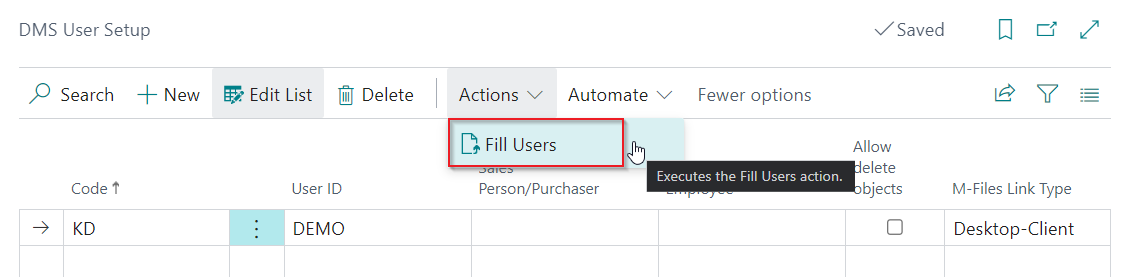
The DMS user setup then forms the basis of the employee objects. Here you can transfer all the user information contained, such as the User ID or the Salesperson, Purchaser codes from BC to the employee object in M-Files.
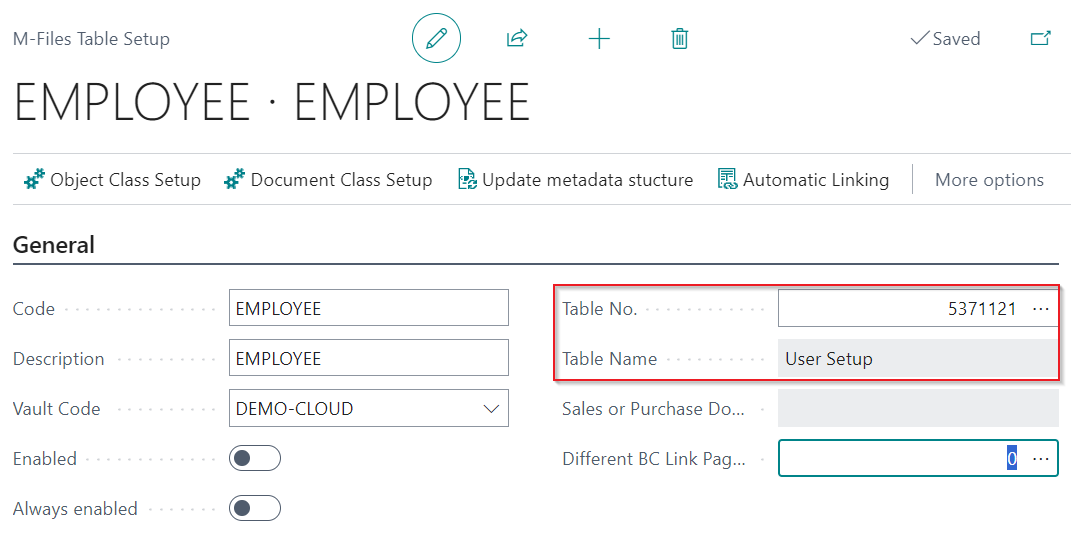
Next, create the table setup for the employee objects in the "DMS Table Setup ".
Please note
The table setup must be based on the BC table of the DMS user setup and linked to the associated M-Files user object. Then the mapping of the metadata described in section DMS M-Files Table Setup described mapping of the metadata can be done. After that, the setup for the employees is complete and the users are replicated to the employee object in M-Files.
Set up a new DMS user
Navigate to the page DMS User Setup.

Set up the fields:
- Code: Specifies a unique code for the user
- User-ID: Displays the User ID from the user table
- Purchaser/Vendor: Specifies the code from the Purchaser/Vendor table
- Employees: Specifies the code from the employees table
- Full Name: The full name is automatically filled depending on the selected DMS User Origin on page DMS Setup
- Limit (Amount) Specifies the user's amount limit
- Allow deletion of objects: Users who are given this right are granted the permission to delete an element via the DMS M-Files table setup or via the map of an element, so that it is also deleted in M-Files Show temporary documents: Specifies whether the user is allowed to see temporary documents in the DMS dropform. By default, documents with the status “New” and “Being uploaded” can only be seen by the user who uploaded/created or last modified them
- Admin users: Admin users can view and edit all documents regardless of the permissions that have been set up.
-
Default Document Action: This controls the way in which documents are opened by a user in the standard system (in the M-Files Desktop Client, in the M-Files Web Client, in the respective application based on the file type, directly in the Preview)
Remarks
- Open in the new Desktop Client: Opening the document in the new M-Files desktop client is currently not supported, as the function has not yet been implemented by M-Files.
- Open in the Default App: To open the document in the default app through M-Files, the M-Files desktop client must be installed on the computer.
-
Class Selection List Order:: Specifies the order of the classes in the class selection list
- Allow Restore Inbox Archive Allows the reversing of inbox archives
- M-Files license type: The license type that has been determined for the user from M-Files is displayed. This setup is used for the permission check of the documents in Business Central
- Concurrent license in use: Specifies whether the user is using a concurrent license. This happens when the user has a concurrent license and the document viewer is opened.
Types of licenses
- No license: Users see the documents in the fact box, but are not allowed to open them. Upload is also prevented.
- Single user license and multi-user license: Users may upload documents and open documents. Documents may be edited in M-Files depending on the authorization.
- Read-only license: Users may upload documents via the Dropbox and open documents. Documents cannot be edited in M-Files.
Actions
Update M-Files license
Updates the M-Files User Licenses.
As soon as the licenses have been synchronized, the authorization check is activated for the documents in Business Central depending on the license type.
The license is determined based on the user ID, full name or e-mail address from the user setup, employee table (if employee field is maintained) or buyer/seller table (if buyer/seller field is maintained). Users without a license are not allowed to upload, download or view documents.