Setup Transfer via Configuration Package
Transfer of the setup
If you would like to transfer your existing DMS Connector setup to another client or even another environment, you can do this using a configuration package. The following instructions will guide you through the individual steps. However, please note the following:
Warning
It has to be ensured that the structure and all IDs used (objects, classes, properties, value lists, workflows) of the new M-Files target vault match that of the source vault. This means that the vault in question has to be either the same vault or an identical copy of it.
Package export
- Navigate to the DMS setup page.
- Create a predefined configuration package using the [Create configuration package] action. This package contains the DMS Connector setup tables. You will then be asked whether you want to go directly to the Configuration packages page.
- First check whether you want to transfer all the tables and fields contained in the package. If you do not want to transfer some tables or fields, remove them from the package.
- Export the package using the [Export package] action.

Package import
- Switch to the client or environment where you want to import the DMS Connector setup.
- Navigate to the DMS setup page.
-
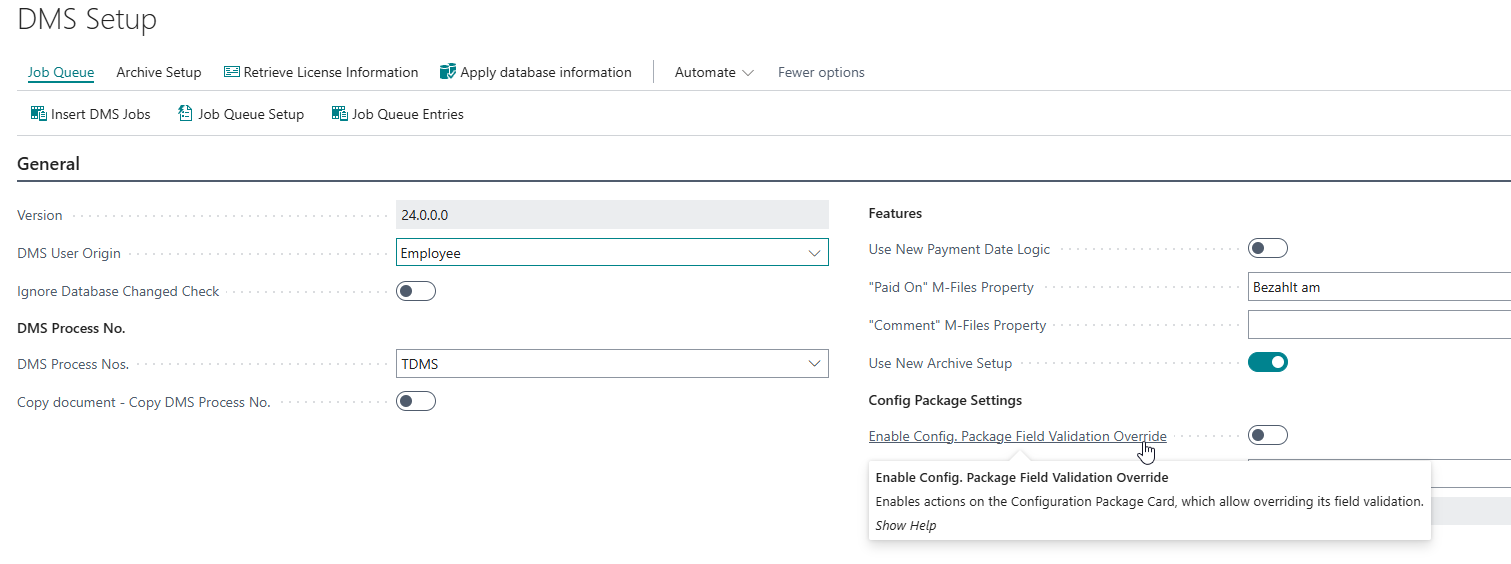
Switch on the setting Enable Config. Package Field Validation Override on the tab General.
-
Navigate to the Configuration Packages page.
- Import the package you exported earlier and open it.
-
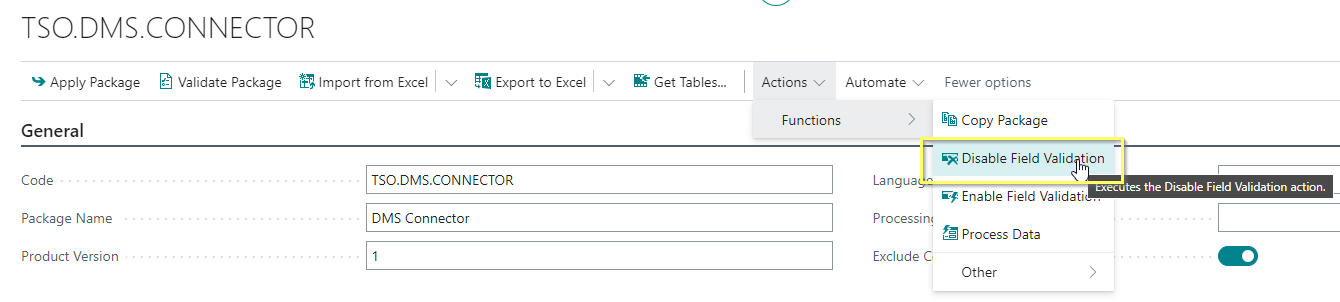
Deactivate field validation via [Actions] > [Functions] > [Deactivate field validation].
Warning
The action of deactivating field validation does not check whether data records to be linked or created exist in the database. For example, when transferring the "DMS user setup" table, the system does not check whether the BC users in question exist.
-
Apply the package using the [Apply package] action. After the transfer, you will see statistics on the transferred data. You have now successfully transferred the DMS Connector setup.
- Finally, check or adjust the connection to the M-Files Vault on the DMS M-Files Vault Setup page and add any necessary DMS jobs on the DMS Setup page.
Job Error
Should the job DMS Create ObjectsTDMS output an error message containing "An object with this ID cannot be found in the current application.", the connection to the new database needs to be established by clicking on [Apply database information] from within the DMS Setup.