DMS Value Lists Synchronisation
Synchronize value lists
From Business Central, an M-Files value list can be populated with records from Business Central tables.
To do this, the value list must first be created in M-Files, but without values. These are filled by the DMS Connector.
Afterwards, the value list can be linked to a table in Business Central.
To do this, open the Vault settings. If you have created a new value list in M-Files, you must first update the Metadata Structure. You can do this using the action of the same name in the menu.
Then click on the "Value list " action. You will land in the overview of the value lists of the vault.
Here you can see both the value lists that have been populated in M-Files and the value lists that you can synchronize with Business Central tables. You can tell whether a value list has already been synchronized by the "Synchronize value lists" column.
If you want to synchronize an M-Files value list with a Business Central table, select the corresponding list and click "Synchronization setup".
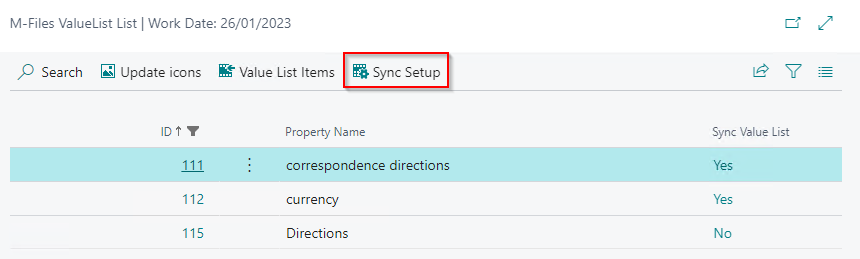
Select the table and field number to be used for synchronization.
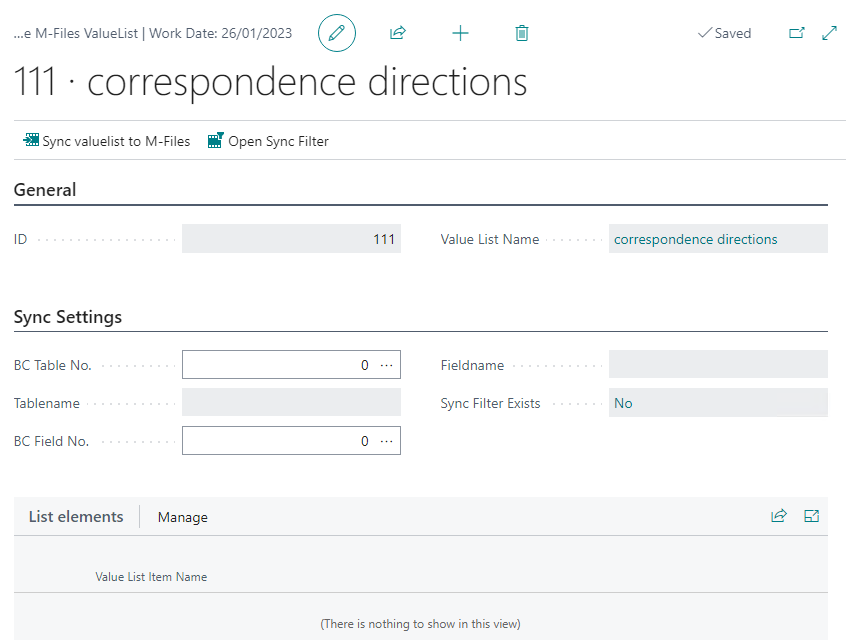
Set up the following fields for synchronization:
General tab:
- ID: Specifies the ID of the value list to be synchronized.
- Value List Name: Specifies the name of the value list.
Synchronization Setup
- BC Table No.: From the list, select the Business Central table you want to use to synchronize from.
- Table Name: Displays the name of the selected table.
- BC Field Number.: From the list, select the Business Central field you want to use as the display name of the value in the value list.
- Table Name: Displays the name of the selected field.
- Filter for synchronization: Indicates if there is a filter for synchronization.
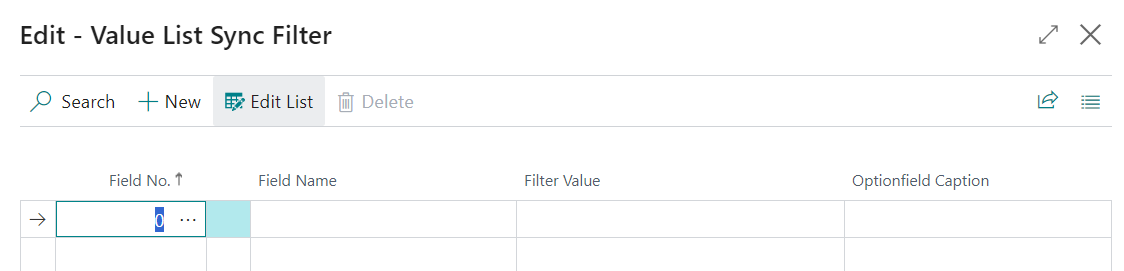
If only certain records are created for the table in the value list, set up a filter for them. To do this, click on the action "Open Sync Filter".
After you have set up everything, click on the action "Sync value list to M-Files", and the value list will be synchronized. The created values are then displayed in the table below.