Job Queue Entries
In the Job Queue, you will find the jobs that check Business Central data for changes, and transfer and replicate that data to M-Files.
Inserting DMS jobs into the Job Queue
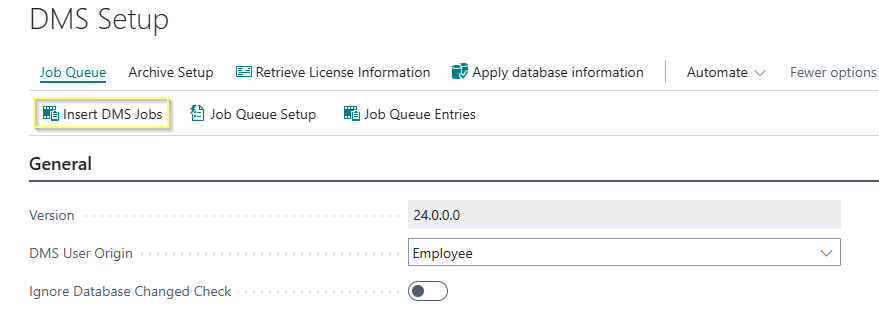
Within the "DMS Setup" window, click on "Insert DMS jobs" in order to create the required jobs. You will receive a pop-up confirmation if this was successful.

In the search, type "Job Queue Entries" and click the hyperlink of the same name.
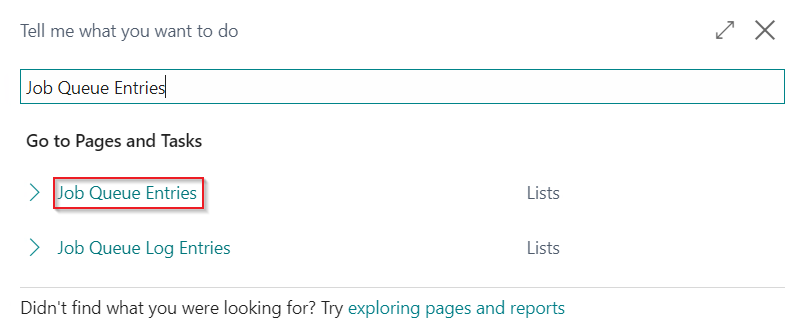
The individual jobs can be configured in the job queue items. To edit a job, it must be set to "On hold" in the edit view.
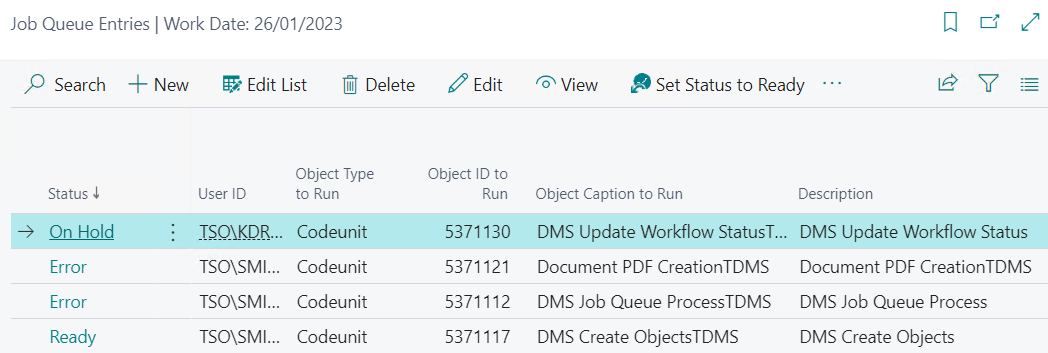
After adding the jobs to the job queue, the following jobs are set "On hold" by default.
Overview of the DMS jobs
- DMS Job Queue ProcessTDMS - Codeunit 5371112: This job is used to upload the documents, which are in the status "Being uploaded", to M-Files in the respective interval and the number per table setup, which is defined in DMS Setup.
- DMS Create ObjectsTDMS - Codeunit 5371117: This job is used to identify objects that need to be created or updated in M-Files due to a facility or metadata update.
- DMS Update Workflow StatusTDMS - Codeunit 5371130: This job is responsible for updating workflow statuses for documents in Business Central.
- Update Ledg. Entry InfoTDMS - CodeUnit 5371139: This job is responsible for synchronizing the payment date of purchase/sales invoices and credit notes to M-Files. If the new logic for synchronization is activated in the DMS Setup, the job Codeunit 5040402 "Copy Ledger EntriesTDMS" must be executed once so that all ledger entries that have already been paid for are subsequently written to the archive tables for processing. A posting date filter can be specified via the parameter string of the job.
- (deprecated) Document PDF CreationTDMS - Codeunit 5371121: This job is responsible for PDF generation for posted documents if this is set up in Report Archiving.
- (new) Scheduled Docs. ArchivingCTDMS - CodeUnit 71178308: This job is responsible for archiving scheduled documents that are set up in the archive setup.
- User Setup ImportTDMS - CodeUnit 5371129: This job is responsible for importing DMS users from Business Central.
Edit view of a codeunit
In order to edit a codeunit or job, click on the [Process] button and set the job status to "On Hold" via the respective button:
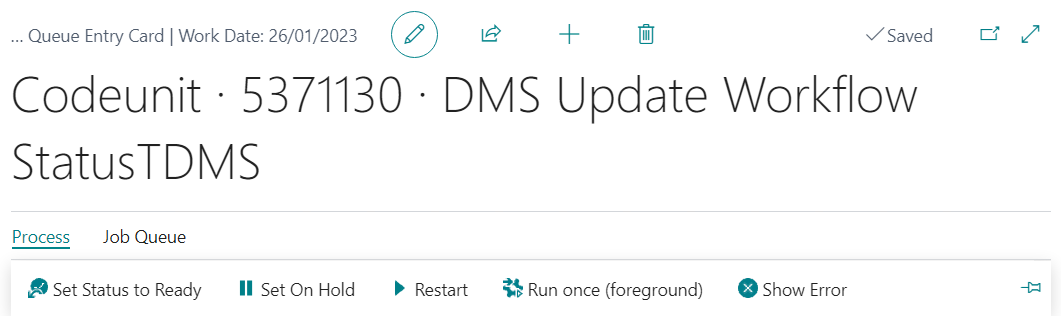
A job is divided into two sections: General and Recurrence.
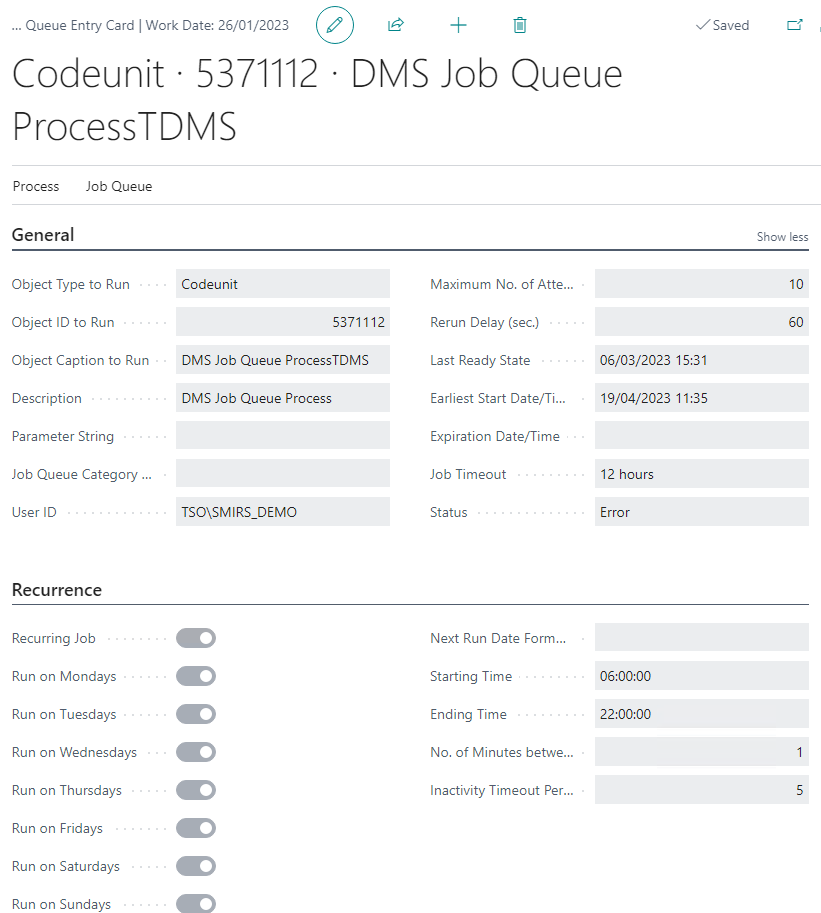
General Tab
- Object Type to Run: Specifies the type of object, report, or codeunit to run for the job queue item. After you specify a type, select an object ID of that type in the ID of object to run field.
- Object ID to Run: Specifies the ID of the object to be executed for the job queue item. You can select an ID of the specified object type in the Type of object to execute field.
- Description: Specifies a description of the job queue item. You can edit and update the description on the job queue item card. The description is also displayed in the job queue Item window, but you cannot update it there.
-
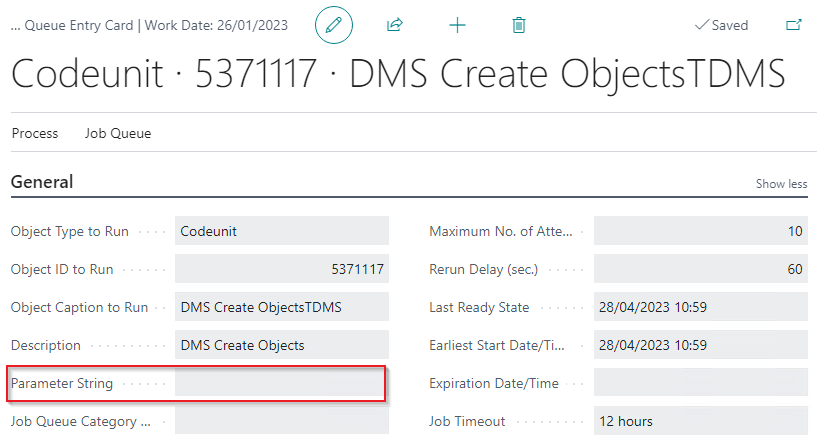
Parameter String: Specifies a text string that is used as a parameter by the job queue when it is executed.
Info
In dem Feld "Parameterzeichenfolge" der DMS Jobs können Sie die Codes der M-Files Tabelleneinrichtungen hinterlegen, die durch den jeweiligen Job bearbeitet werden. Ist die Parameterzeichenfolge leer, bearbeitet der jeweilige Job alle Tabelleneinrichtungen.
Der DMS Job "Document PDF CreationTDMS" (5371121) überprüft die Parameterzeichenfolge nicht.
Der DMS Job "Object ImportTDMS" (5371127) muss zwingend eine Parameterzeichenfolge haben, da er bei vielen Tabelleneinrichtungen zu lange laufen könnte. Andernfalls läuft er auf einen Fehler.
Es werden immer nur aktive Tabelleneinrichtungen bearbeitet.
-
Job Queue Category Code: Specifies the code of the job queue category to which the job queue item belongs. Select the field to choose a code from the list.
- User ID: Specifies the ID of the user who posted the item (for use in the change log, for example).
- Maximum No. of Attempts to Run: Specifies the number of times a job queue task should be re-executed after a job queue execution error. This setting is suitable for situations where a task is unresponsive. For example, a task may be unresponsive because it depends on an external resource that is not always available. Recommended: 10
- Last Ready State: Indicates when (date and time) the job queue item was last set to "Ready" and sent to the job queue.
- Earliest Start Date/Time: Indicates the earliest date and time for the job queue item to run.
- Expiration Date/Time: Indicates when (date and time) the job queue item will expire. After this time, the job queue item will no longer be executed.
- Status: Indicates the status of the job queue item. When you create a job queue item, the status is set to "Waiting". You can change the status to "Ready" and back to "Waiting". Otherwise, the status information in this field is updated automatically.
Recurrence Tab
- Recurring Job: Indicates whether the job queue item is recurring. If the Recurring Job checkbox is selected, the job queue item is recurring. If the check box is cleared, the job queue item is non-recurring. After you specify that a job queue item is recurring, you need to specify the days of the week on which you want it to run. Optionally, you can also specify a time to run the task and the number of minutes between executions.
- Days to Run: Specifies that the job queue item will run on the days. Recommended: Monday through Friday.
- Next Run Date Formula: Specifies the date formula used to calculate the next time to execute the recurring job queue item.
- Starting Time: Specifies the earliest time to run the recurring job queue item. Recommendation: 06:00:00.
- Ending time: Specifies the latest time for the recurring job queue item to run. Recommended: 22:00:00.
- No. of Minutes between Runs: Specifies the minimum number of minutes that must elapse between executions of a job queue item. This field is relevant only if the job queue item is set as a recurring task (Cannot be shorter than 1 minute). Recommended: 1.
- Inactivity Timeout Period: Specifies how many minutes can pass before a recurring project with the "Waiting" status is automatically restarted. Recommended: 0