DMS Journal Integration
General
Further transactions can be carried out in BC via the journal pages, for example posting an invoice/credit memo. Typically, there are purchasing journal pages and financial accounting journal pages. You can find further information on accounting journal pages here from Microsoft.
The M-Files Dropbox is integrated in the journal view. This means that before posting a document, a new document can be manually assigned to the line in addition to selecting the document via the DMS document inbox.
The document can be uploaded using drag & drop.
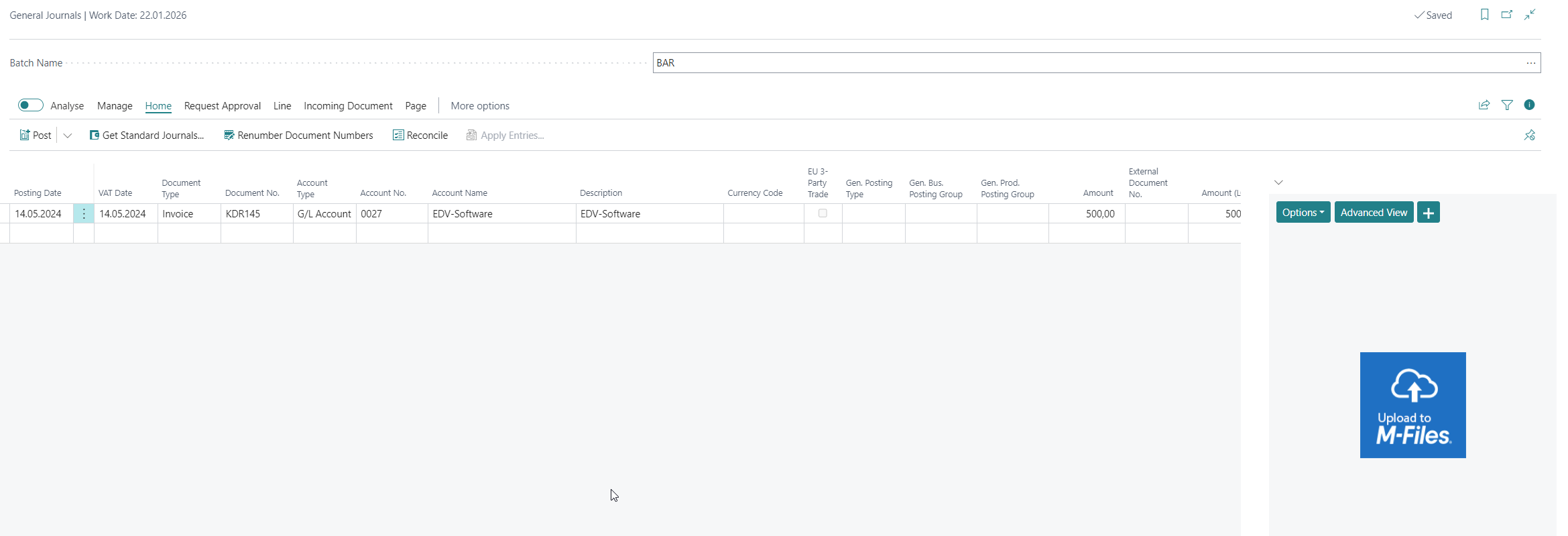
A tab opens in which you can select which document class the added document should have. The setup takes place in the table setup.
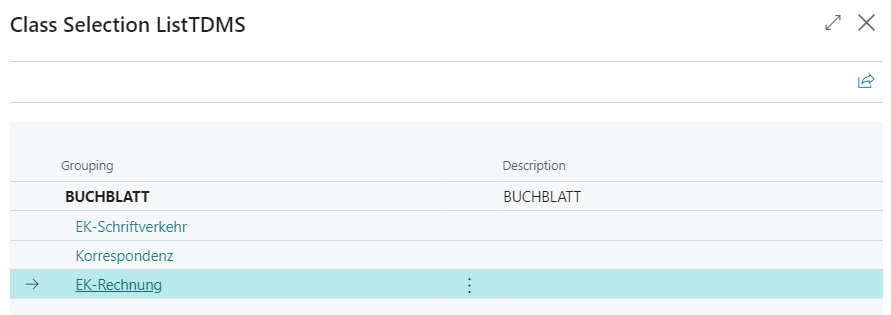
The uploaded document is linked to the journal line before posting, the link to the journal line is removed again after posting and the corresponding document is linked to the respective G/L, vendor and/or customer item.
If a document has been uploaded or classified incorrectly, the line can be deleted and recreated. Deleting also removes the link between the document and the journal line and the document is deleted. The document can then be uploaded to the line again.
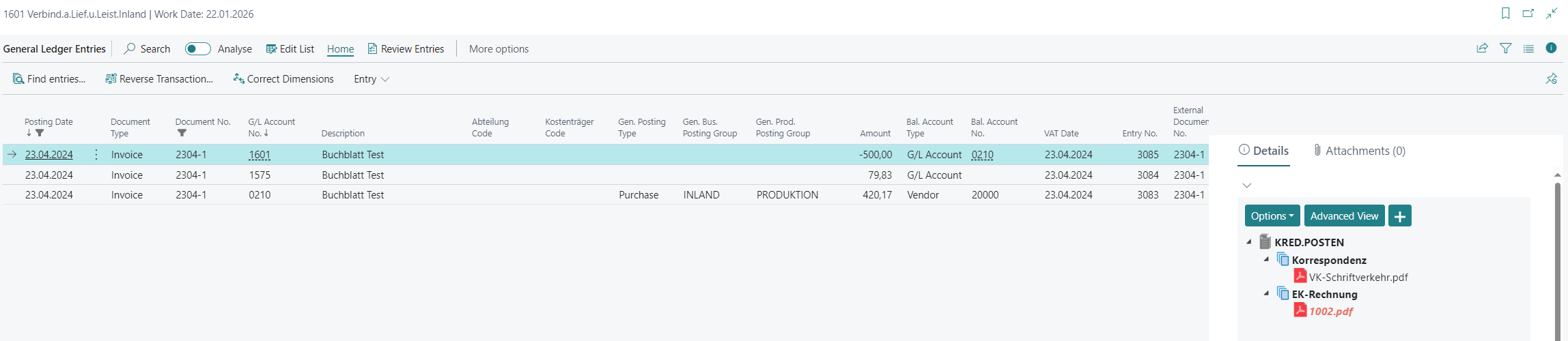
If a line has been posted, the posting can be found in the corresponding items, depending on which transactions were carried out via the journal pages. In our case, we can find the transaction in the vendor items as well as the general ledger items, as a purchase receipt was posted. The previously uploaded document now also appears in each item, as the link is made via the transaction number. A special setup for the link is not necessary.
DMS M-Files Table setup for journal integration
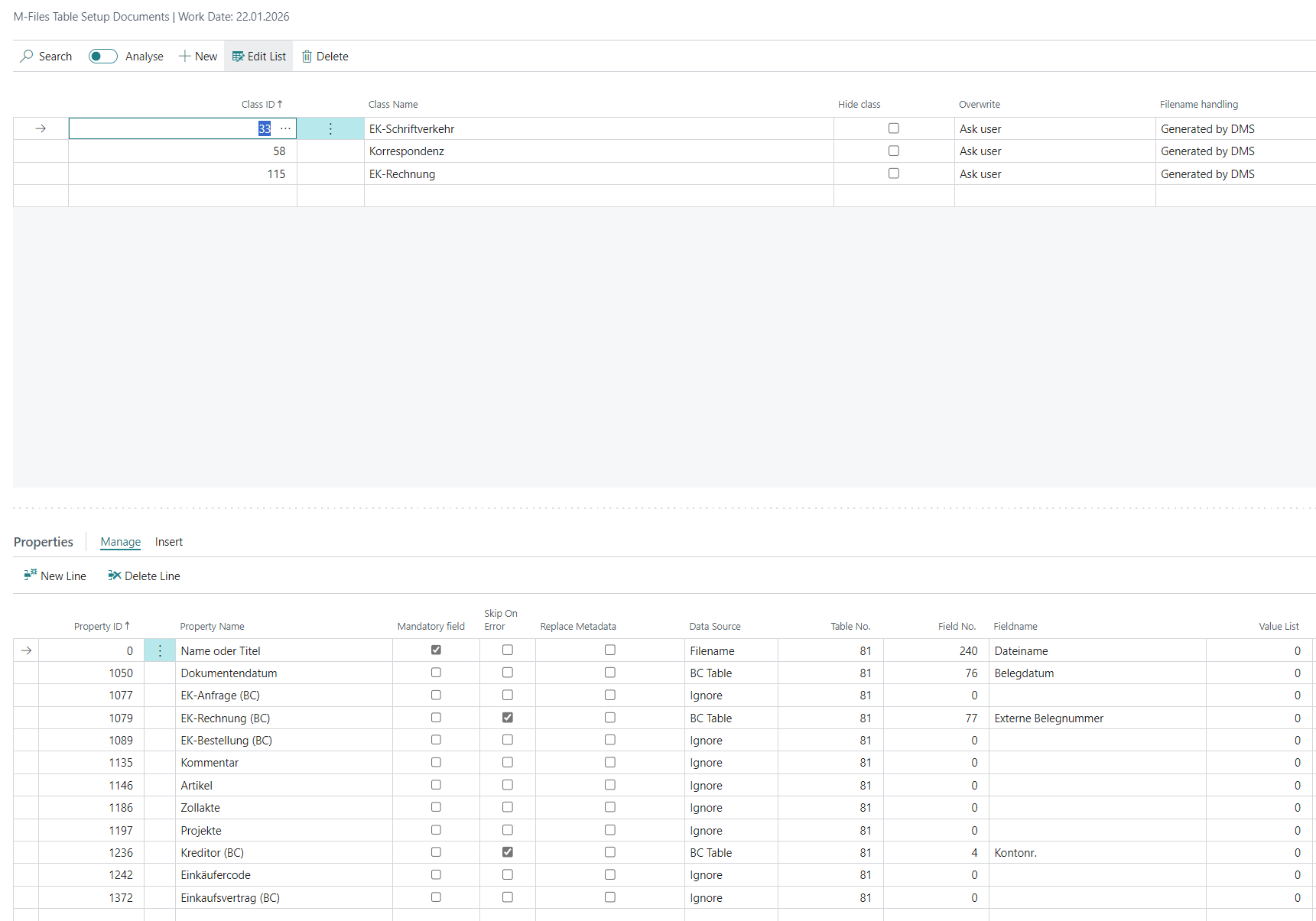
All tables where documents are to be displayed must be set up in the table setup. The settings for the journal page (table 81), vendor items (table 25) and G/L items (table 17) are required specifically for using the journal pages.
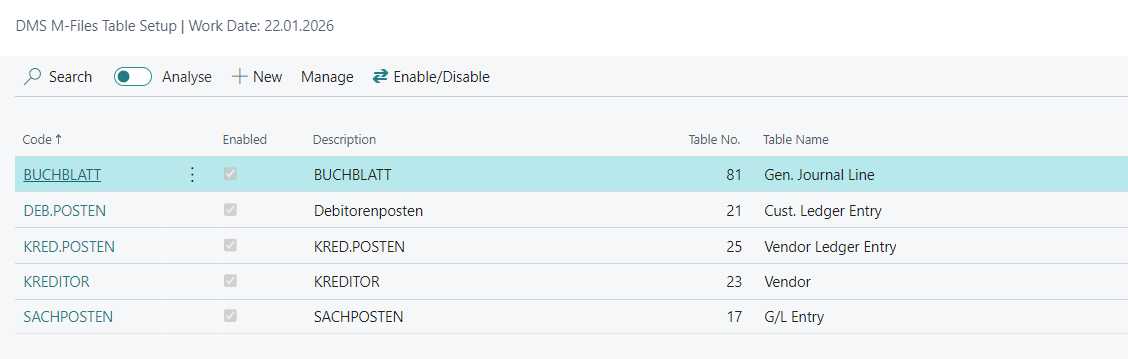
If the journal is also to be used on the customer side, it must be set up accordingly. In addition to the setup described above, the setup for the customer items (Table 21) is also carried out for this purpose.
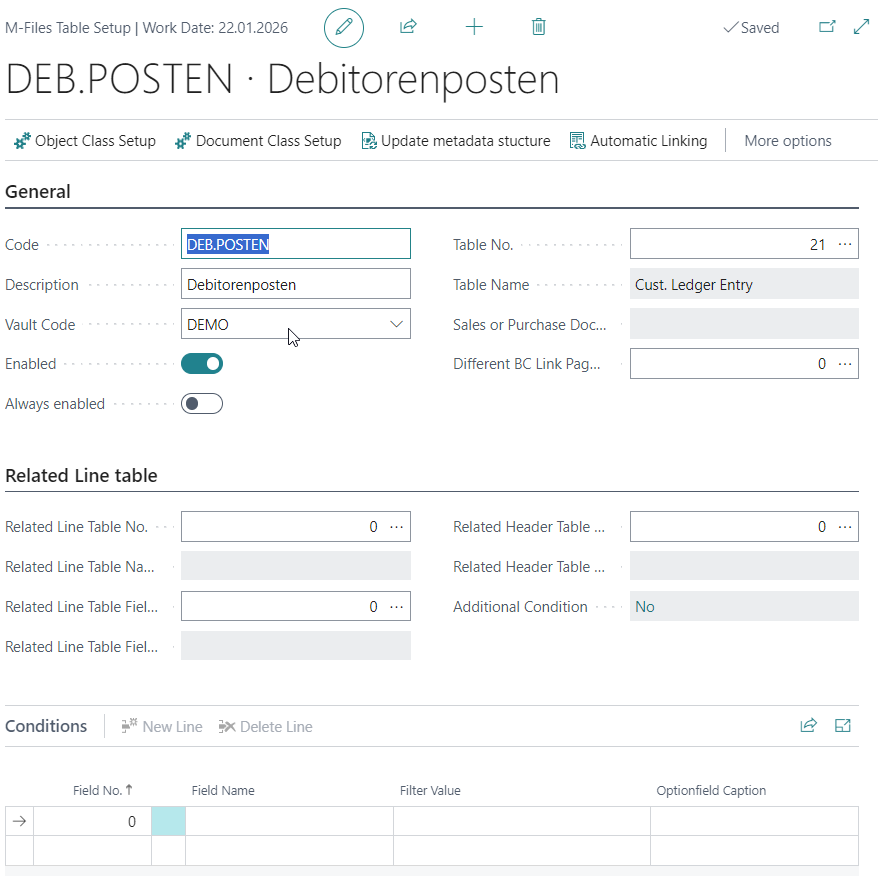
It is important that the document class setup contains the same document classes for the relevant tables, for example, this could be purchase invoice or purchase correspondence. However, the setup of these classes can be customized so that the desired document classes can be selected when uploading a document. The property mapping is carried out as usual. The object class setup can be neglected here for the time being.
Tip
- If you create a new first line in the journal, the dropbox does not appear directly. To do this, you must leave the created row once. As soon as you are back on the original line and the page refreshes automatically, the dropbox appears on the right as usual.
- You can assign several documents to a posting. These will appear accordingly in the posted items.