(NEW) DMS Archive Setup
Conversion to the new report archiving
If you have already set up the old report archiving, it is advisable to coordinate the conversion to the new report archiving with your contact at TSO. Your individual implementations for the report archiving may need to be analysed and modified before the conversion.
The DMS Archiving enables the archiving of documents that are sent by e-mail, printed or released. Schedule-based archiving, e.g. for posted documents, is also possible.
- Both standard and individual email scenarios can be set up
- All documents that are printed using the standard or individual [Print] action via the Business Central print dialog box can be archived. To do this, the corresponding report ID must be set up in an Archive Setup Template
- Released documents* via the standard action [Release] can be archived automatically. Individual release actions require additional development
*An overview of the standard reports integrated in the DMS Connector, which can be archived upon release or when posted, can be found here.
Setup
Setting up DMS archiving consists of three steps:
- Creation and setup of templates
- Completion of the setup from the templates
- Activation of the new report archiving via the setting Use New Archive Setup in [DMS Setup]
Archive Setup Templates
You can find the DMS archive setup templates by searching [DMS Archive Setup Templates].

- Code: Unique code for the template.
- Description: Description of the template.
- Email Scenario: The email scenario that is taken into account by this template when sending emails. Emails are only archived if there is an active archive setup.
- Email Archiving Type: The email can be archived together with or separately from the attachments, or only the attachments can be archived as individual files.
- Report Usage: The report usage can be used to restrict the report IDs.
- Report ID: The applicable report ID for the template. Without report usage, you can select from all report IDs.
- Report Layout Name: Specifies the report layout used for automatic archiving. If left blank, documents are archived regardless of their report layout.
- Table ID: The table that belongs to the template. A table ID must be specified for scheduled archive setups.
- Table Caption: The table caption of the selected table.
- Scheduled: Specifies whether archiving should be carried out by a job. This initially refers to the job 71178308 Scheduled Docs. ArchivingCTDMS. There may be further jobs for individual customizations.
Actions
- Import Default Templates: Imports predefined templates to speed up the setup.
- Archive Setup: Opens the archive setup card.
Archive Setup
You can find the DMS archive setup by searching for [DMS Archive Setup].
The page is divided into two parts: the documents to be archived at runtime are set up at the top and the documents to be archived on a schedule basis at the bottom.
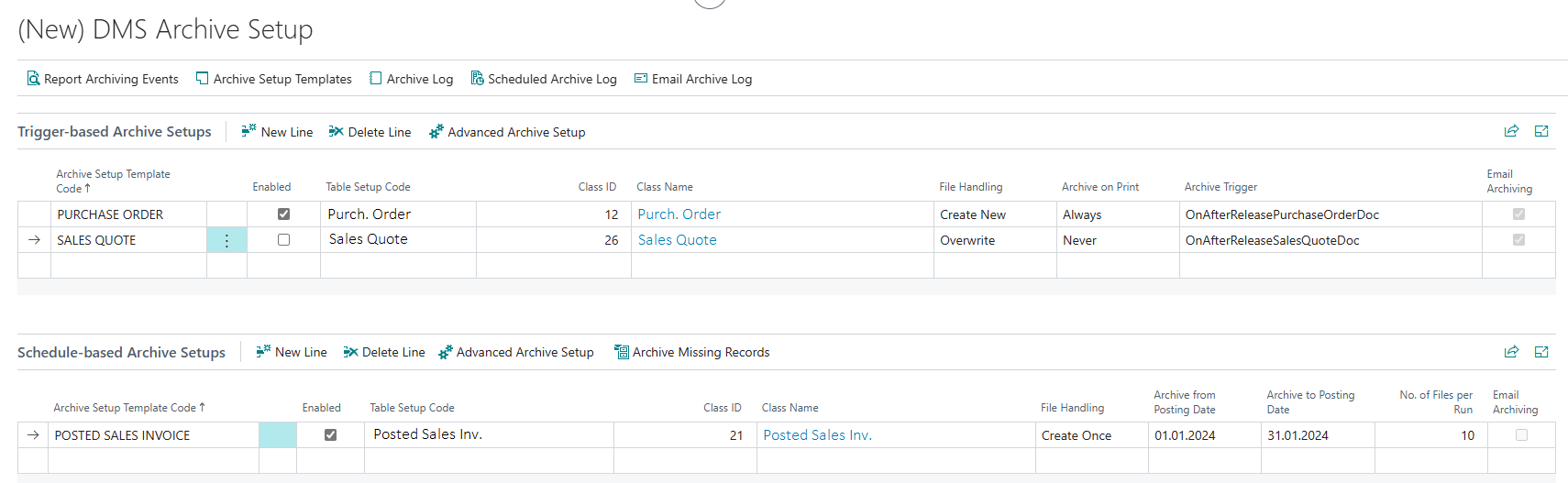
Trigger-based Archive Setups
Receipts are archived immediately if there is an active matching archive setup for them. Archiving takes place when events are triggered (e.g. on release), or when documents are printed or sent (via "Send to..."), or sent by e-mail.
- Archive Setup Template Code: The corresponding template.
- Active: This allows you to control whether the selected archiving is active or inactive.
- Table Setup Code: Select the table setup where the M-Files class you want to use for archiving is set up. The table setups are automatically filtered by table number if a table number is set up in the template.
- Class ID: Select the class to be used for archiving.
- Class Name: The name of the class selected in the previous field.
- File Handling: Select what should happen to the already archived file if the document is archived again.
- Archive on Print: Select when to archive when printing.
- Archive on Send: Select when to archive on "Send to...".
- Archive Trigger: Select the event on which you want to archive. The appropriate events are filtered if a table number is set up in the template.
- Email Archiving: Indicates whether email archiving is active for the current setup. Email archiving is active as soon as an email scenario is selected in the template.
Line Actions
- Advanced Archiving Setup: Opens the advanced archive setup for the selected configuration.
Schedule-based Archive Setups
Documents are archived on a schedule basis if there is an active matching archive setup for them. The documents to be archived are created on the basis of data records in the Scheduled Archive Log. Currently, a data record is written to the scheduled archiving log when Sales Invoices and Credit Memos are posted and when Reminders are registered.
The job 71178308 Scheduled Docs. ArchivingCTDMS is required for archiving. During execution, all active DMS archive setups marked as scheduled are processed by this codeunit.
- Archive Setup Template Code: The corresponding template.
- Active: This allows you to control whether the selected archiving is active or inactive.
- Table Setup Code: Select the table setup where the M-Files class you want to use for archiving is set up. The table setups are automatically filtered by table number if a table number is set up in the template.
- Class ID: Select the class to be used for archiving.
- Class Name: The name of the class selected in the previous field.
- File Handling: Select what should happen to the already archived file if the document is archived again.
- Archive from Posting Date: You can specify the posting date from which archiving should start.
- Archive to Posting Date: You can limit the posting date up to which the archiving should run.
- No. of Files per Run: Here you define how many documents are to be archived per job run. The run is executed by the job queue entries.
- Email Archiving: Indicates whether email archiving is active for the current setup. Email archiving is active as soon as an email scenario is stored in the template.
Line Actions
- Advanced Archiving Setup: Opens the advanced archive setup for the selected configuration.
- Archive Missing Records: Adds all missing records to the scheduled archive log for the selected setup.
Actions
- Report Archiving Events: Opens the list of implemented events that trigger archiving. If further events are to be made available, this requires implementation by a developer.
- Archive Setup Templates: Opens the list of templates.
- Archive Log: Opens the archiving log, in which all DMS archiving is logged.
- Scheduled Archive Log: Opens the scheduled archive log, in which data records that are processed by the archiving job are written.
- Email Archive Log: Opens the email archive log, in which information on relevant outgoing emails and their archiving status is written.
Advanced Archive Setup
Email Archiving
- Email Archiving Enabled: Specifies whether email archiving is active.
- Email Archiving Type: Specifies how the emails are archived.
- Email Class ID: Specifies in which M-Files class the email file will be archived. If this field is left empty, the file will be archived in the main attachment class.
- Email Class Name: Specifies the M-Files class in which the email file will be archived.
- Main Attachment Class ID: Specifies in which M-Files class the main attachment is archived. The main attachment is the first file in the email.
- Main Attachment Class Name: Specifies the M-Files class in which the main attachment will be archived.
- Archive Secondary Attachments: Specifies whether secondary attachments should be archived. Secondary attachments are all files in the email except for the first one.
- Secondary Attachment Class ID: Specifies in which M-Files class the secondary attachments are archived. If this field is left empty, the file will be archived in the main attachment class.
- Secondary Attachment Class Name: Specifies the M-Files class in which the secondary attachments will be archived.