DMS Object Import Setup
The Object Import facility is used to link documents stored in M-Files to Business Central tasks. A typical application scenario is when a document is to be assigned to several Business Central tasks at the same time. Controlling this via Business Central is very cumbersome for the user, but in M-Files linking multiple objects / tasks to one document is simple. The setup searches for documents in M-Files based on filter criteria, writes them to a Business Central buffer table and links them to the stored objects / tasks based on the setup. In addition, the setup can be used to update existing Business Central records or create new records.
Setup
You can find the setup by entering "DMS Object Import" in the search. This will take you to the overview of set up import functions.
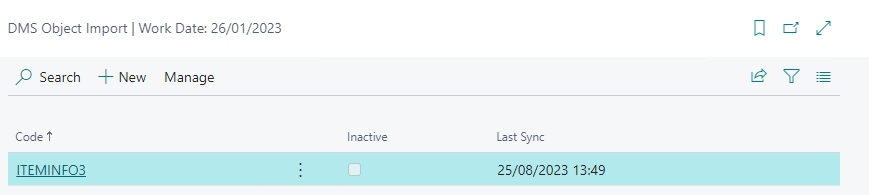
For each device, the list shows you the code of the device, its activation status and the time of the last synchronization.
Click "New" to create a new setup:
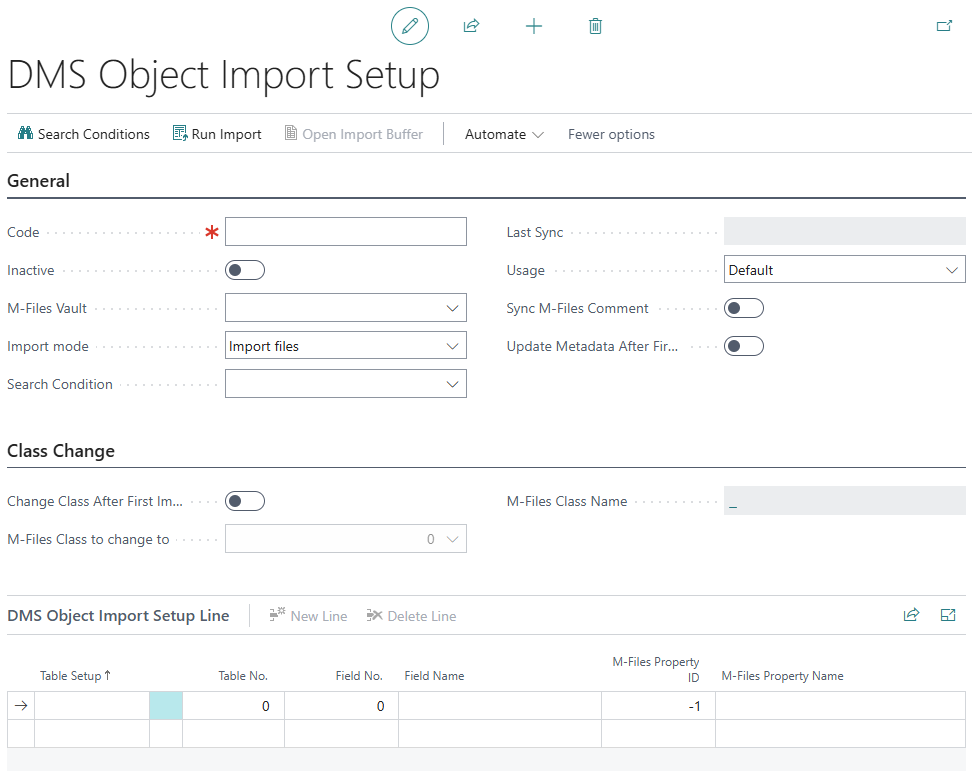
Head setup
Setup of basic parameters:
- Code: Name of the facility. Recommendation is to name the setup like the document class to be imported.
- Inactive: Activation status of the facility.
- M-Files Vault: Deposit of the addressed M-Files Vault.
- Search conditions: Deposit of the search conditions on the basis of which the documents are collected in M-Files (see Setup Search conditions (Object Import Setup)).
- Last synchronization: Time when the synchronization was executed for the last time, either manually or the entry in the task queue (setup see below).
- Usage: If the object import is to be used for other functionalities, this must be defined here. To use the object import setup for document inbox, "Inbox" must be selected here.
- Sync M-Files Comment: Specifies whether the comments of the M-Files object are synchronized. The comments are written in the corresponding field on the purchase document and passed on throughout the entire transaction.
The field is hidden by default and is displayed if the following conditions are met: There must be at least one active object import setup with Usage = Standard and Sync M-Files Comment = Yes. There must be at least one table setup with the same table number as the current page's source table. - Update Metadata After First Import: Specifies whether the metadata of the document in M-Files should be updated if there is new or updated metadata after the document has been assigned to a data record.
- Change Class After First Import: Specifies whether the class of the document in M-Files should be changed after the first import.
- M-Files Class to change to: Specifies the M-Files class to which the document should be changed after the first import.
- M-Files Class Name: Specifies the M-Files class.
- Import mode: Defines how the imported documents should be processed:
- Import files: Default mode for linking documents to Business Central tasks (see section Import mode: Import files).
- Update existing records: Updates existing Business Central records based on M-Files metadata (see section Import mode: Update existing records).
- Create new records: Creates new Business Central records from M-Files documents (see section Import mode: Create new records).
Line setup
Setup of the associated M-Files table setup, i.e. to which Business Central table this setup should refer or to which Business Central table the documents should be linked.
Note: The line setup is only used for the import mode "Import files" and "Update existing records". For the mode "Create new records" the table setup from the header is used.
- Table setup: Associated M-Files table setup. The document class to be synchronized must be set up in the document classes of the table setup, but can be hidden.
- Table No.: Target table number from the table setup.
- Field No.: Setup of the Business Central field of the table on the basis of which the linking should take place (usually the primary key of the table and at the same time the object ID of the object in M-Files). For the mode "Update existing records" the fields configured here are used as primary keys to identify the record to be updated.
- Field Name: Name of the associated field, will be filled automatically.
- M-Files Property No.: Number of the property of the document in M-Files, on the basis of which the entry in the Business Central table can be identified (usually the object reference to the associated object). This field can be a multiple selection in M-Files.
- M-Files property name: The associated name of the property in M-Files.
Functions via the ribbon
- Search conditions: Define the search conditions on the basis of which the documents are searched in M-Files.
- Start import: Start manual import of documents to be linked. Note: this is also possible via an entry in the task queue. See below for setup.
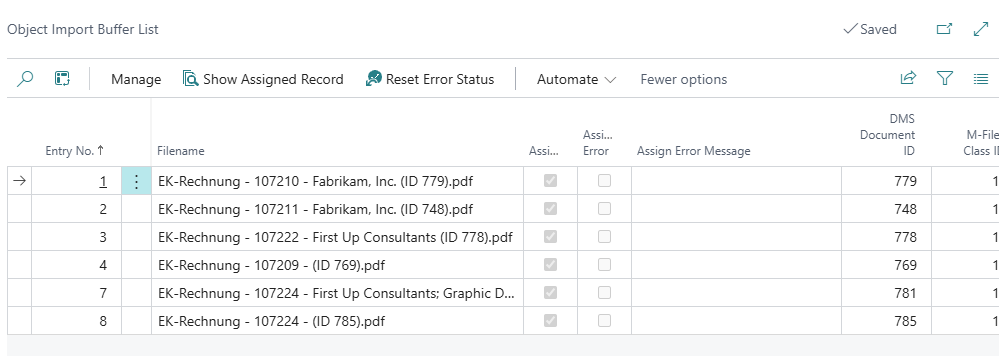
- Import Buffer Table: Shows the documents already imported based on the setup.
Setting up search conditions
The search conditions define the filter criteria for identifying documents in M-Files.
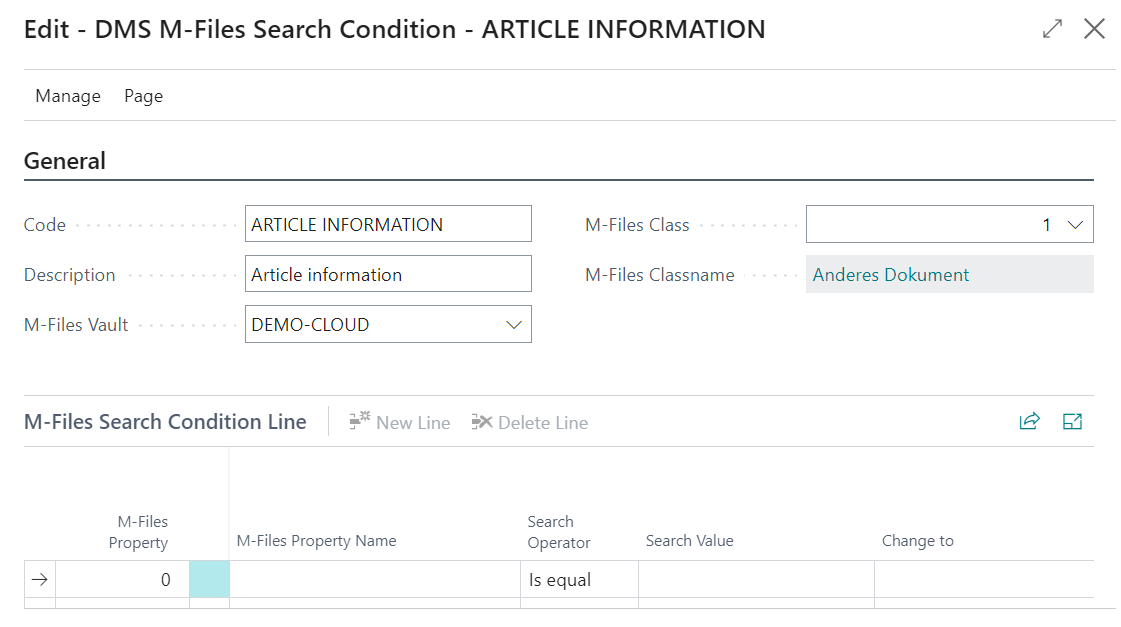
Setup header information
- Code: Set the unique code of the institution.
- Description: If required, a more detailed description of the facility (e.g. name of the document class + name of the table to which the documents are to be linked).
- M-Files Vault: Deposit of the corresponding M-Files vault.
- M-Files Class: Set up the M-Files class to be synchronized to the Business Central table.
- M-Files Class Name: The associated name of the class in M-Files.
Setup line information
- M-Files property: Number of the M-Files property to be used as filter criterion. This can be, for example, the timestamp when the document was last modified, or a Boolean field. If you work with a Boolean value, the value can be changed from No to Yes after the import, thus ensuring that a file is not imported more than once. Alternatively, you can work with the timestamp "last modified" and after the import the timestamp will be set high. If the "Set date filter after run" is checked, the date filter will be set high after each synchronization, so it is also ensured that documents are not synchronized multiple times.
- Search operator: Sets the search operator (is equal, is not equal, greater than, greater than/equal to, less than, less than/equal to).
- Search value: Sets the search value, for a Boolean field for example = No.
- Change to: Specifies whether the value should be changed after import. If yes, the value can be set here. For example, for a Boolean = Yes.
- Set date filter after run: If a property containing a date or timestamp is used as a filter, the checkmark can be set to enter the current timestamp after each job run.
Any number of additional filters can be added to the search criteria, for example a certain property is != empty or similar.
Set up task queue entry
If the import is to take place automatically on a regular basis, a separate job can be stored in the task queue for this purpose.
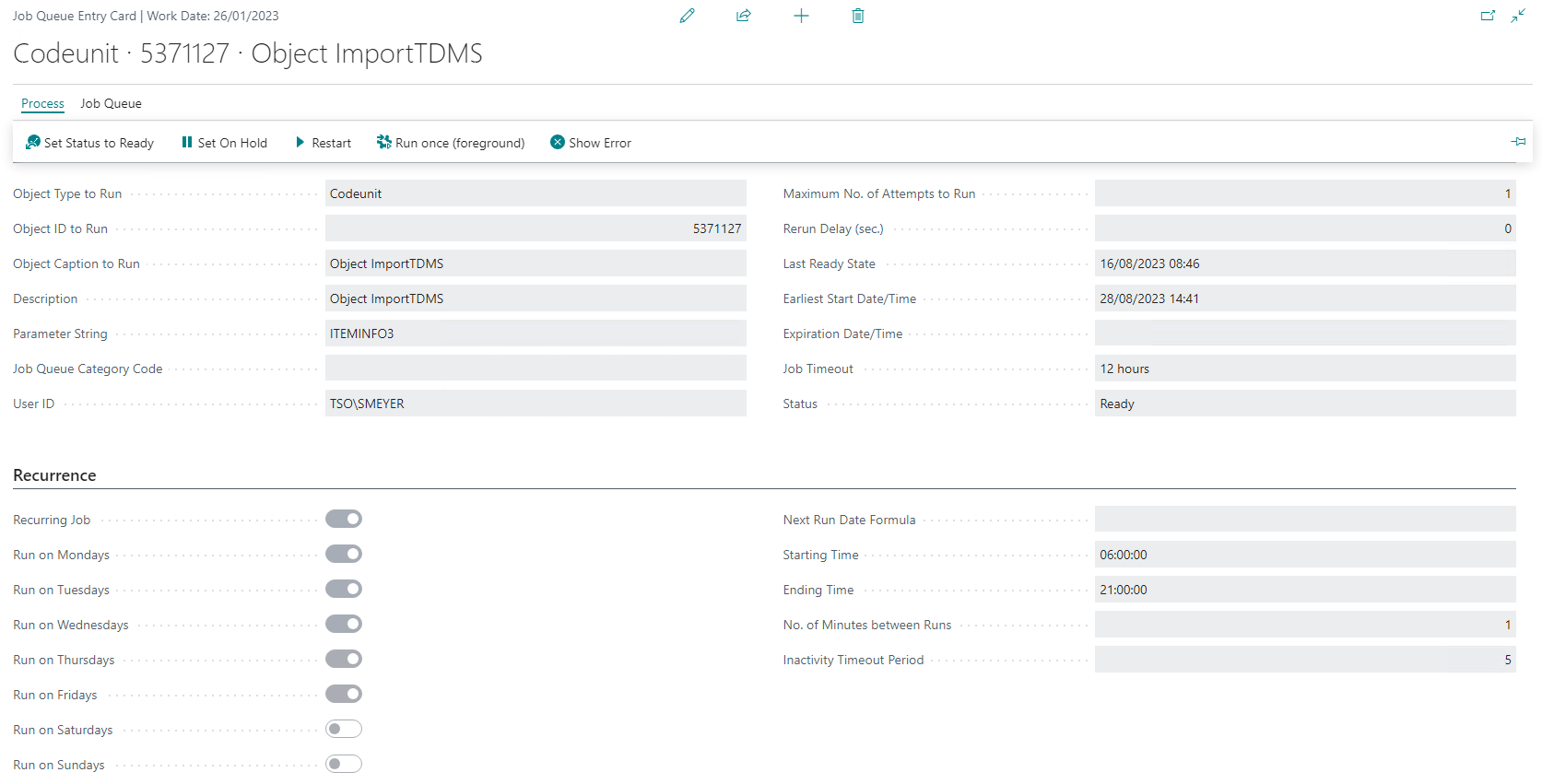
The Codeunit 5371127 has to be set up for this. The screenshot shows an example setup. All active Object Import setups are taken into account.
The setup of the repetition is up to the administrator. If many documents have to be imported frequently, it should be checked whether it makes sense to run the job less frequently and, if necessary, outside productive time.
Import mode: Import files
This is the default mode of the Object Import Setup. In this mode, documents from M-Files are linked to existing Business Central tasks.
Setup
- Select "Import files" as Import mode
- Configure the line setup with the fields and M-Files properties for document linking
- The document linking is based on the mappings configured in the line setup
Import mode: Update existing records
In this mode, existing Business Central records are updated based on M-Files metadata.
Setup
- Select "Update existing records" as Import mode
- Configure the line setup with the fields that are used to identify the record to be updated (usually the primary key fields):
- Table setup: Select the appropriate table setup
- Field No.: Specify the field number of the primary key field
- M-Files Property No.: Select the M-Files property that contains the value for the primary key field
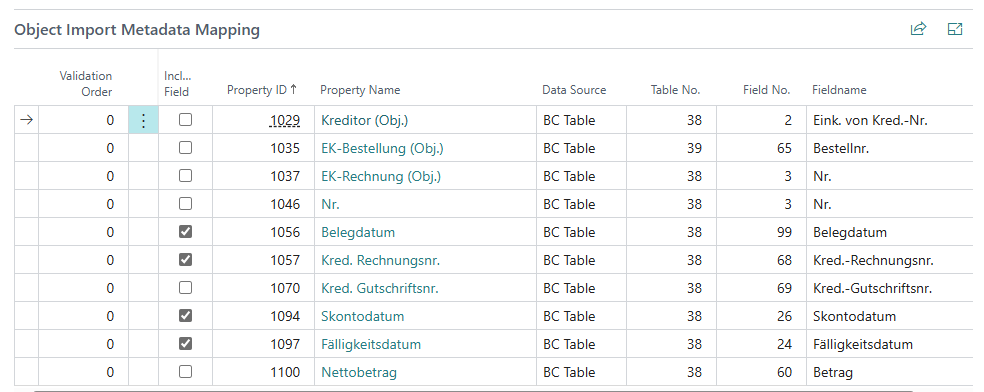
- In the Metadata Mapping define which fields should be updated:
- Update field: Check all fields that should be updated during import
- Validation Order: Define the order in which the fields are validated (important for dependencies between fields)
- Skip Validation Trigger: Optionally you can skip the validation trigger for individual fields
- The mapping between M-Files properties and Business Central fields is taken from the table setup
- Make sure that the corresponding document class is set up in the table setup
Import mode: Create new records
In this mode, new Business Central records are created from M-Files documents. The field mapping is done via the table setup specified in the header.
Setup
- Select "Create new records" as Import mode
- Select the appropriate table setup in the header, which defines:
- In which Business Central table the records should be created
- For sales/purchase documents: which document type should be used
- In the Metadata Mapping define which fields should be filled when creating:
- Update field: Check all fields that should be filled during import
- Validation Order: Define the order in which the fields are validated (important for dependencies between fields)
- Skip Validation Trigger: Optionally you can skip the validation trigger for individual fields
- The mapping between M-Files properties and Business Central fields is taken from the table setup
- Make sure that the table setup is enabled
- The line setup is not used in this mode