DMS SharePoint Setup
You can find the DMS setup with the search under "DMS SharePoint Setup". In the DMS Setup area you will find three tabs. In the section"General" you will find the general DMS Connector settings. In the section"Upload attempts" you can see the parameters, how the upload of records is done. In the tab "License information" you can find information about your DMS Connector license.
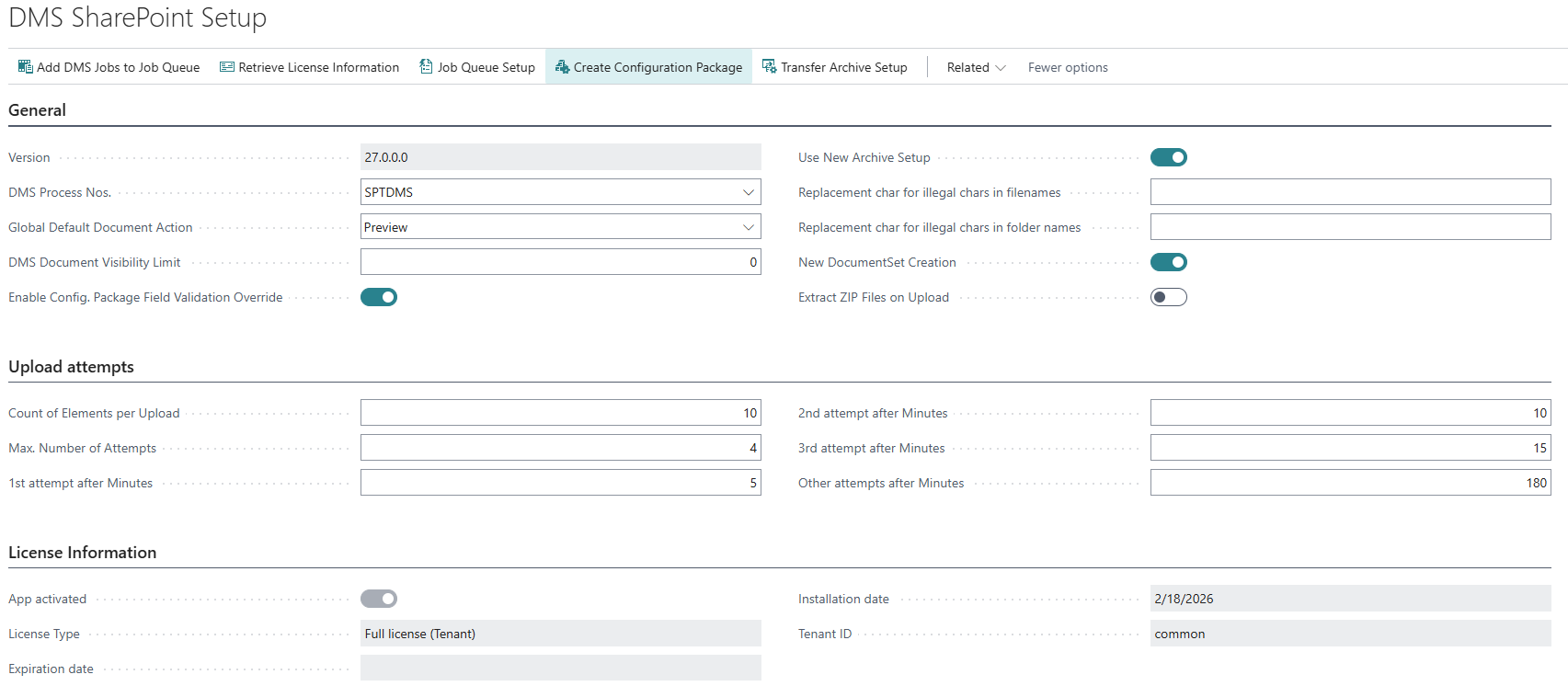
The following describes the fields on this map.
General tab
- Version: Indicates the version of the app.
- DMS Process Nos.: A number series must be stored here, which the DMS Connector can use as a transaction number for documents, for example to link them across the sales process.
- Global Default Document Action: Specifies the global default action that controls the way in which documents are opened via the drop form. The default action can also be defined per user in the DMS User Setup
- Preview: Opens the advanced view and displays the document in the document preview.
- Open in the App: Opens the document in the default app which is configured for the filetype.
- Open in Browser: Opens the document in the browser.
- Open Folder: Opens the folder where the document is localed.
- Enable Config. Package Field Validation Override: Activates actions on the configuration package card that allow the field validation to be overridden.
- Ignore Database Changed Check: When executing the job queue jobs, the system checks whether the client/environment has been copied. If this is the case, the jobs are no longer executed to prevent incorrect data from being transferred to the DMS.
Deactivation
If this check is deactivated, incorrect information or documents may be transferred to the DMS.
- Use New Archive Setup: Specifies whether the old or the new Report Archiving is active.
Conversion
If you have already set up the old report archiving, it is advisable to coordinate the conversion to the new report archiving with your contact at TSO. Your individual implementations for the report archiving may need to be analysed and modified before the conversion.
- Replacement char for illegal chars in filenames: Specifies the value of the replacement char for illegal chars in filenames.
- Replacement char for illegal chars in folder names: Specifies the value of the replacement char for illegal chars in folder names.
- New Document Creation: Specifies whether the new or the old logic for the creation of document folders is used.
- Extract ZIP Files on Upload: Specifies whether ZIP files should be automatically extracted when uploaded.
Upload Attempts tab
- Number of Files per Upload: Indicates how many objects/files per table setup are uploaded per run. Recommendation: 50
- Max. Number of Retries: Indicates how many times a failed transfer should be retried at most. Recommendation: 4
- 1st Attempt after Minutes: Indicates after how many minutes the next upload attempt will be started after the previous attempt has failed. Recommendation: 5
- 2nd Attempt after Minutes: Indicates after how many minutes the next upload attempt will be started after the previous attempt has failed. Recommendation: 10
- 3rd Attempt after Minutes: Indicates after how many minutes the next upload attempt will be started after the previous attempt has failed. Recommendation: 15
- Additional Attempts after Minutes: Indicates after how many minutes the next upload attempt will be started after the previous attempt has failed. Recommendation: 180
License Information tab
For an explanation see License management
In the DMS Setup area, you can view all the information regarding the status of your current license in the "License Information" sectionat the bottom.
- App activated: Indicates the current activation status.
- License type: Indicates the current license type.
- Expiration Date: Indicates when the license expires.
- Installation Date: Indicates when the DMS Connector was installed.
- Tenant ID: Specifies the current Tenant ID.
Actions
- Insert DMS Jobs to Job Queue: Insert all missing DMS jobs to the job queue.
- Retrieve License Information: Gets the current license.
- Job Queue Setup: Opens the job queue setup.
- Create Configuration Package: Creates a configuration package prefilled with the DMS Connector setup tables.
- Apply database information: Applies the current database information.
- Transfer Archive Setup: Starts the transfer of setup and log entries from the old to the new report archiving.
- Job Queue Entries: Opens the Job Queue Entries list.