Integration (NAV)
This article describes the integration of the GDPR Toolbox based on a standard database version NAV 2017 and requires the corresponding GDPR Toolbox objects for the respective NAV version as well as an installed Development Client. These are available on the website www.tso.de/nav-zusatzmodule/GDPR-toolbox/benutzerlogin/ - via this link you can also download the updates.
Import objects
The objects could be imported via the NAV Development Client. To import the objects, call the function [File] [Import] and select the downloaded file. In the displayed dialog, select the option "No".

By selecting the option "No", the Import Worksheet is opened and you can get an overview of the corresponding objects.

The objects displayed here show only a part of the objects - the GDPR Toolbox contains more than 80 objects in total. Please select here the function [Replace All] and start the import with [OK]. Since the object package contains tables, the following dialog is displayed.
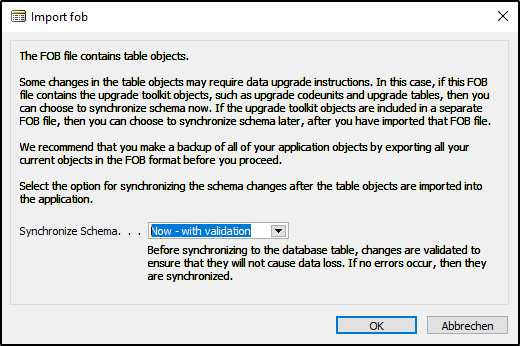
Please select the option "Now - with validation" and confirm with OK. The corresponding table changes are now synchronized with the SQL Server schema and then a status window with the result of the import is displayed.
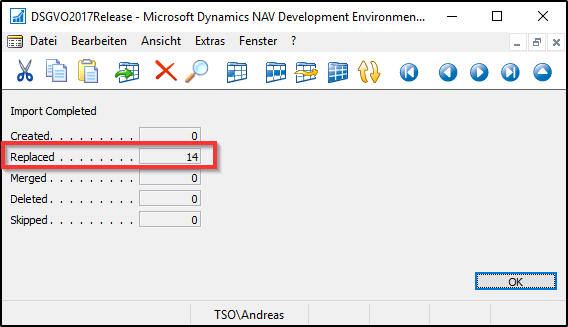
Please check that the corresponding number of objects is displayed in [Replaced].
Merge Standard Objects
The object package for the GDPR Toolbox contains also changes in three standard objects - that concerns the Pages "Resource Card" (76), "Contact Card" (5050) and "Employee Card" (5200). The action for the GDPR details has been integrated here. If you want to import the objects into a customized customer database or an industry solution, you must merge these objects manually and skip them during the import (see Import Worksheet).

In addition to the objects as FOB files, you can also download the objects as TXT files and then merge the corresponding new action "GDPR Details" into the respective existing page of the database.
Compiling Objects
If all objects have been imported and the standard objects have been merged, all objects of the GDPR Toolbox should be compiled. In the NAV Development Client, select the group [All] and filter the objects in the version list to @*GDPR* - this has limited the object list to the corresponding objects.

In this view, select all objects with [Edit], [Select All] and compile the objects with [Tools], [Compile]. If objects cannot be compiled, a corresponding overview window is displayed.
Import Demo Configuration
A configuration package with a demo setup is also provided on the website. This demo setup is not intended for use in a production environment, but must first be coordinated with the customer and the data protection officer and tested in a demo environment. To import the demo configuration, call up the configuration packages via the application search and import the file with the extension [.rapidstart] using the [Import Package] action.

With the help of the action [Apply Package] the corresponding demo configuration is accepted.
Note: The ".rapidstart-file" provided and the name of the configuration package may differ from this representation.
When the import is complete, a status window is displayed showing how much data has been processed and how many errors have occurred. The number of imported records may vary depending on the size - the package has been successfully imported if the number of errors is 0.
Install updates
You will be informed about updates and hotfixes for the GDPR Toolbox via the newsletter. The corresponding updates are available for download at GDPR Portal in the form of zip files. The zip file contains the objects as FOB and TXT and, depending on the update, also a separate file for the upgrade objects (as FOB and TXT, starts with Upgrade...). In addition, the zip file also contains the release notes with the documentation for the corresponding changes in this version as well as a note on any existing upgrade objects.
Importing Upgrade Objects
The import of the upgrade objects is described below using the provided FOB file in the Development Client. After you have opened the Development Client, choose [File][Import] and select the corresponding file that contains the upgrade objects. If tables are contained in these upgrade objects, a corresponding dialog is displayed in which you can decide how you want to deal with these table changes.

In this dialog, select the "Later" option, because the table changes are synchronized collectively in a later step.
Importing the Update Objects
To import the update objects, please open the corresponding FOB file contained in the downloaded zip file. If there are existing objects in the database, you will be notified and you can open the Import worksheet. The objects for the update can also contain changes to standard objects - depending on the version, this can affect the pages "Resource Card" (76), "Contact Card" (5050) and "Employee Card" (5200), among others. The action for the GDPR details has been integrated here. If you want to import the update objects into a customized customer database or an industry solution, you must merge these objects manually and skip them during the import (see Import Worksheet).
If the update objects contain changes to tables, select the "Later" option in the dialog that appears for synchronizing the changes.
Compiling Objects
If all objects have been imported and the standard objects have been merged, all objects of the GDPR Toolbox should be compiled. In the NAV Development Client, select the group [All] and filter the objects in the version list to @*GDPR* - this has limited the object list to the corresponding objects.
In this view, select all objects with [Edit], [Select All] and compile the objects with [Tools], [Compile]. If objects cannot be compiled, a corresponding overview window is displayed.
Synchronizing Schema Changes
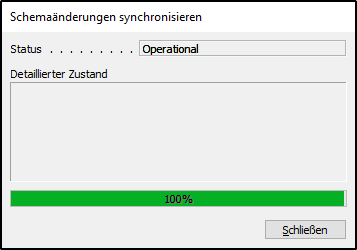
If the schema changes have not yet been synchronized when compiling the objects, you can do this in the menu [Tools] [Sync. Schema For All Tables] [With Validation] - with a successful synchronization you will receive the following status information:
Data upgrade
Some of the updates contain upgrade codeunits that transfer the data to the changed structure after the schema changes have been synchronized. If the update package contains these items, they are referenced separately in the Release Notes.
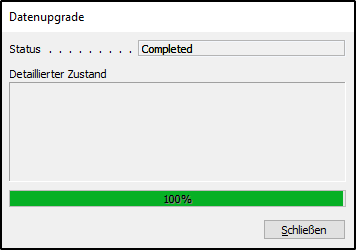
To upgrade the data, call [Tools] [Data Upgrade] [Start] and confirm the corresponding processing duration note with Yes. Select "Parallel" as the execution mode and activate only the indicator for "Show progress". OK starts the data upgrade and displays the progress in the corresponding dialog box. If the data upgrade has been completed successfully, the following overview is displayed:
Delete Upgrade Objects
After the data upgrade has been successfully completed, the upgrade objects can now be deleted from the database. To do this, open the NAV Development Client and select the group [All], filter the objects in the version list to @*UPG* - this restricts the object list to the corresponding upgrade objects. Check the result with the list of upgrade objects from the Release Notes for the update.
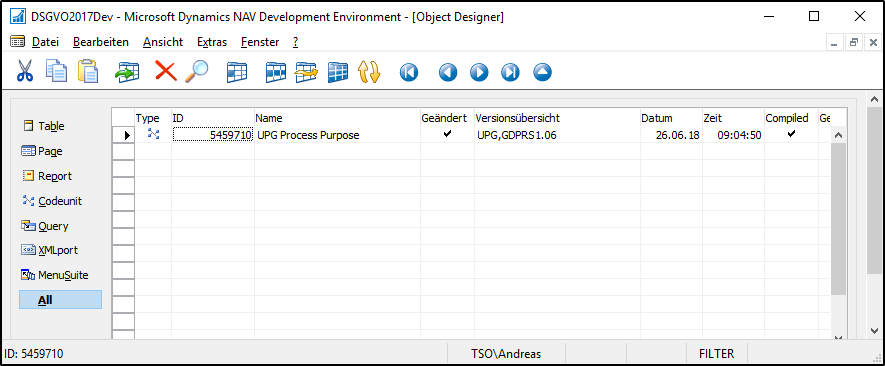
Select all objects and delete them with F4.