Setup (Business Central)
The GDPR Toolbox supports the special data protection requirements in Microsoft Dynamics 365 Business Central. The General Data Protection Regulation (GDPR) is a European Union regulation unified the rules governing the processing of personal data by private companies and public authorities throughout the EU. This should ensure the protection of personal data within the European Union on the one hand and the free movement of data within the European internal market on the other.
Einrichtungsassistent
The GDPR ToolBox has a setup wizard for sample setup data. After installing the GDPR ToolBox, this wizard can be started via the notification. In addition, the wizard can be accessed via the Assisted setup page.
Click on Setup now.

Please select the language that matches your Business Central version.

The GDPR ToolBox has a dedicated role center GDPR ToolBox. You can activate this individually under my settings.

The entire GDPR Toolbox menu structure can also be found under Explore all available business features in Business Central in any other role center.

GDPR Setup
In this area the global settings for the GDPR Toolbox are defined. Please note that the screenshots and the data contained therein represent an example and do not claim to be complete. Each company stores personal data differently and elsewhere in Business Central, therefore all settings and definitions must be agreed and checked with the data protection officer and, if necessary, changed and supplemented. The content described here is merely a prerequisite for the GDPRS Toolbox to be technically set up - this facility must be coordinated, adapted and thoroughly tested in a test system before it can be used in a production system.

The following table describes the individual fields of the registers.
Field |
Description |
|---|---|
Default Client Type |
When data records are created in the tables with personal content, planned actions for deleting and anonymizing the data are inserted and links to the data records are also inserted. The advantage of displaying and referring to the planned actions in the form of links is that links are already available in a large number of pages and that the information can therefore be made available in many standard objects without having to make adjustments to standard objects. This field defines the form in which the link for the reference to the planned actions is created. If this setting is subsequently changed, the links in the database are also rebuilt. |
Skip Links |
With this option you activate that no links are to be created as a connection between created data records and the planned actions if they are not needed. This can have a positive effect on performance, especially when creating scheduled actions for existing data. |
Reschedule Actions |
If this field is activated, scheduled actions are moved with the standard reschedule reason when their origin data records are updated. The standard reschedule reason can be defined in the reschedule reasons. |
Scheduled Activities |
You can use this indicator to specify whether the planned actions are not to be created immediately when the data record is created, but afterwards via the job queue. If this option is activated, a job queue item is created and displayed for further processing. Please note that the job queue can be executed automatically ("Manual Scheduled Action"). |
Action Suggestion |
You can use this indicator to specify whether the suggestions are to be created automatically via the task queue. If this option is activated, a job queue item is created and displayed for further processing. |
Process suggested actions |
You can use this indicator to automatically generate a job queue item that processes (deletes and anonymizes) the suggested actions on a time-controlled basis. |
Import Details and Consents |
You can use this indicator to automatically generate a task queue item that inserts the GDPR details and declarations of consent from the import transport table in a time-controlled manner. |
Update Exclude from Segment |
Defines whether the field "Update Exclude from Segment" in the GDPR details for the contact should be updated based on the planned processing purposes. For each planned processing purpose, you can define whether segmentation is allowed. Depending on the planned processing purposes, the system then checks whether at least one processing purpose allows segmenting, otherwise the field "Exclude from Segment" in the contact is activated. Note: Removing the "Exclude from Segment" flag is not removed if it was set manually by the user. For this purpose, there is a separate field in the GDPR Details in the background, which documents the manual setting of this indicator. |
Update Contact Mailing Group |
Activating this option updates the mailing group on the contact depending on the planned processing purposes. A distribution list can optionally be assigned to each processing purpose. |
Append DateTime |
This setting defines whether the date and time should be appended to the file names of the files created by data export. |
Request No. Series |
The request number series is defined here for the requests of concerned persons. |
Initial Status Code |
When the request is created, the initial processing status in the form of a code is defined in this data record. This field is also used for filtering the requests in the role center. |
Await Response Status Code |
If there are internal requests regarding the request of the person concerned, this status can be entered here. This field is used to filter the task cues in the role center accordingly. |
Wait Status Code |
The wait status can be used to classify external requests to the person concerned and display them accordingly in the task cue. |
Process Status Code |
If the request of the person concerned is processed, the status of the request changes to this corresponding status code. |
Rejected Status Code |
If the request of a data subject cannot be met (e.g. because legal provisions oppose the request for deletion), then this corresponding status code can be used. |
Done Status Code |
If the request of the person concerned is completely processed, the status of the request changes to this corresponding status code. |
Record Type
The record types are templates with information and specifications that are used when new tables with personal data are defined in the data structures. In addition, the protection class and protection level for the information contained therein are stored in the data types.
For the following protection classes, they are part of the example setup and do not claim to be complete.
Code |
Description |
SK-1 |
Normal need for internal data |
SK-2 |
High demand for confidential data |
SK-3 |
Very high demand for particularly secret data |
In addition, the following protection levels are available with the example setup.
Code |
Description |
1 |
General documents that are to be illegible or voided |
2 |
Internal documents that are to be rendered illegible or voided |
3 |
Sensitive and confidential data and personal data subject to increased protection requirements |
4 |
Particularly sensitive and confidential data and personal data subject to increased protection requirements |
5 |
Confidential information of existential importance to a person, a company or an institution |
6 |
Documents to be kept secret if exceptional safety precautions are to be observed |
7 |
Data to be kept strictly confidential and subject to the highest security precautions |
Assignment of protection class and protection levels
This assignment has already been proposed in the example data. Up to now, only data of protection class 1 and protection level 3 has been provided for the example data.
Request Status
With the request status, requests from concernded persons can be classified with regard to the processing progress and the processing result. This table contains the fields Code and Description and the entries are a prerequisite for the specifications in the GDPR institution.
Data Structures
The data structures contain the configuration for the tables with personal data and the links between the tables. In addition to the tables, the fields with personal contents are also defined here. The display is in a tree structure and the relations and filters for the corresponding tables can be stored on the respective table at the next higher level.

From the respective data structure, you can use the "Tables" action to branch to the setup of tables, fields, relations and specifications for the respective data structure.

The corresponding tables are stored in the line structure. The hierarchy can be influenced by the actions "Indent" and "Unindent". In addition, this view provides an overview of the detailed facilities from the table specifications, the field list, the relations and the corresponding filters.
Table Guidelines
The table guidelines define the rules for which actions are to be performed with the personal data in this table. You can also define the record type and the data collection reason in the table specifications.

The following fields can be stored in the table specifications:
Field |
Description |
|---|---|
Table ID |
Number of the table from the data structure |
Table Caption |
Name of the table from the data structure |
Record Type Code |
Select the data type from the Data Types table. The specifications contained in this table are copied to this table and can be overridden here. |
Activity Calculation |
The Activity Calculation refers to the action type and determines how long it is intended to store the data in this table and thus determines the time when the corresponding action type is to be executed for the data records. |
Activity Type |
The action type defines how the data in this table is to be handled if the reason for saving the data is no longer given. Here you can distinguish between deleting and anonymizing. |
Dynamic Activity Type |
This controls whether the activity type can subsequently be changed to "Anonymize" for an action type "Delete". This can be useful, for example, if you create a sales activity and do not want to delete it in any other transactions with the sales activity within the defined period. In the case of contacts from which, for example, a customer is created and sales transactions take place, the contact should be anonymized. The dynamic activity type is only used in conjunction with the action type "Delete" and is checked when proposals for deletion/anonymization are created. For data in underlying data structures, the action type with the indicator activated is set from "Delete" to "Anonymize". |
Requesting Selection Allowed |
You can use this indicator to define that this table is permitted for selecting and assigning the link between the requester and the corresponding master data record. |
Collection Reason Code |
The specification in this field determines the standard data collection reason for the generated data records in this table. This information is not copied into the individual data records of the table, but is defined here as a global default. |
Alway allow Anonymization |
Regardless of the activity type defined for the table, you can use this setting to define that anonymization of the data in this table is always permitted. |
Execute Delete Trigger |
This indicator defines that the deletion trigger of the corresponding table and thus the business logic for deletion is to be taken into account. This field is preset with "Yes" for new data records. |
Scheduled Action (Field No.) |
With this field you can select a date field from the corresponding table which is used for the subsequent creation of "Scheduled Actions" to determine the date on which the activity type for this table is to be executed in combination with the "Activity formula" field. |
Scheduled Action (Field Name) |
This field displays the field name for the selected field according to the "Scheduled action (field no.)". |
Ignore longest deadline |
If this field is activated, data from this table can be anonymized or deleted upon reaching the action date, regardless of its superior structure (usually contact). These independent records are color-marked in the suggested actions. |
Field List
The field list defines the fields of the table that can contain personal data.
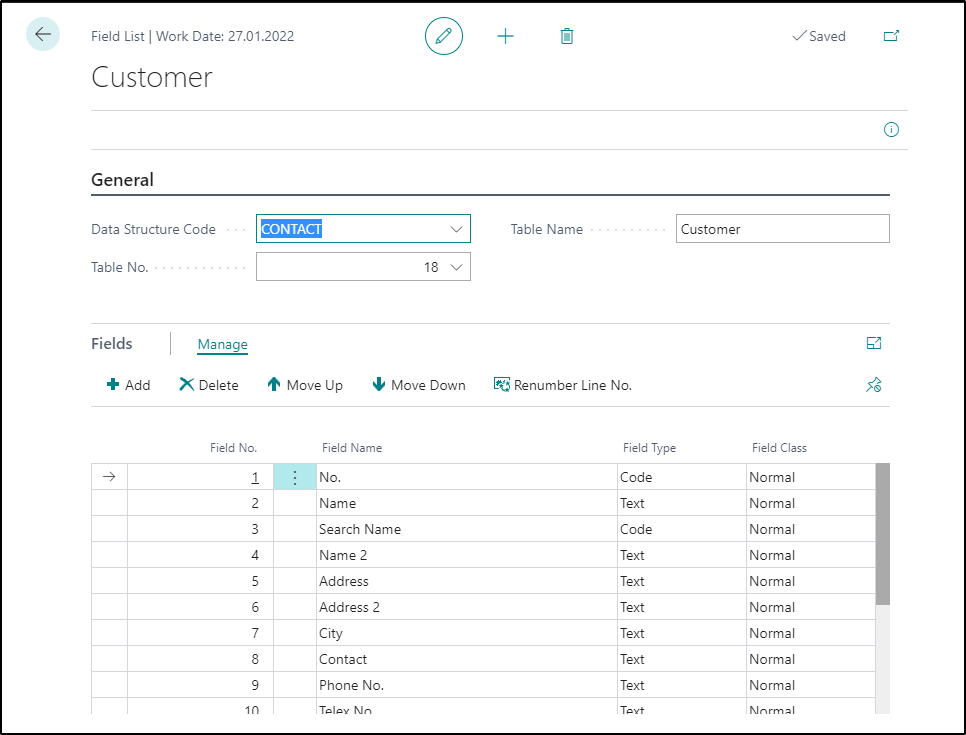
The "Add" actions can be used to add new fields and the "Move Up" and "Move Down" actions can be used to change the order of the fields in the list.
Relations
The relations define the connections to the table on the next higher data level. The "From Table" and "To Table" are displayed in the view. The corresponding fields are defined in the line-oriented view of the window.
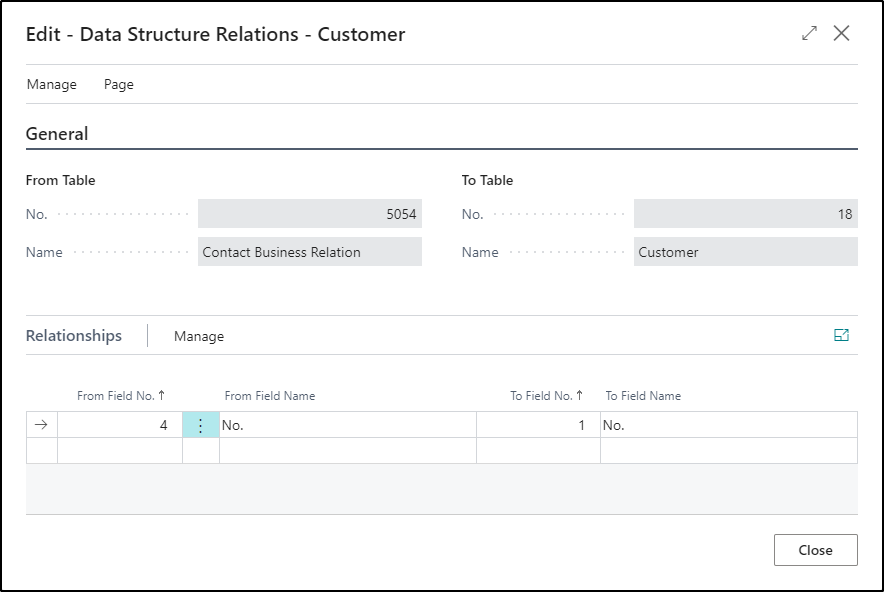
In this example, the relations from the "Contact Business Relationship" and "Customer" tables are displayed.
Table filter
In the Table Filters column of the Data Structure view, you can define fixed table filters in the form of a table using the AssistEdit button.
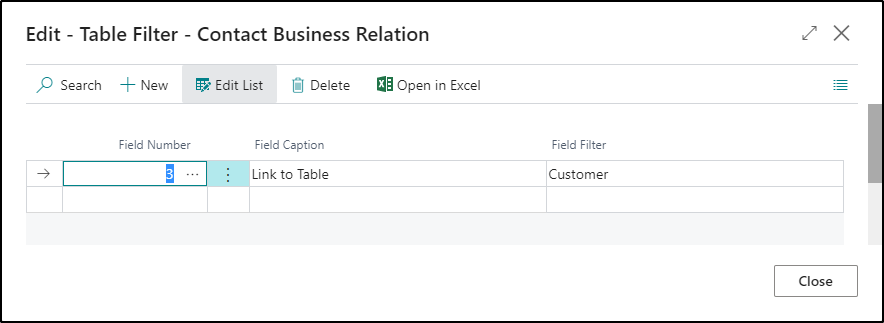
In the Table Filter column of the Data Structure Tables view, you can use the AssistEdit button to call a table in which the fixed fields between the current table level and the table level above it are defined. In this case, a fixed filter is created between the Contact and Contact Business Relation table. Since the customer is to be considered in this branch of the data structure tree, the filter is defined here as a fixed value for the customer.
Multiple entries of a table
Tables can be inserted several times in the data structure. Different relations/filters and field lists can be used. If, for example, you want to filter the sales invoices once according to the "Sell-to Cust. No." and according to the "Bill-to Cust. No.", you can consider these filters/relations in two different rows. In addition, you can define the field lists for the export, the information and the anonymization of information per row, so that there are separate field lists with the "Sell-to" fields for the relation on "Sell-to Cust. No." as well as a separate field list with the "Bill-to" fields for the relation can be mapped to "Bill-to Cust. No.".
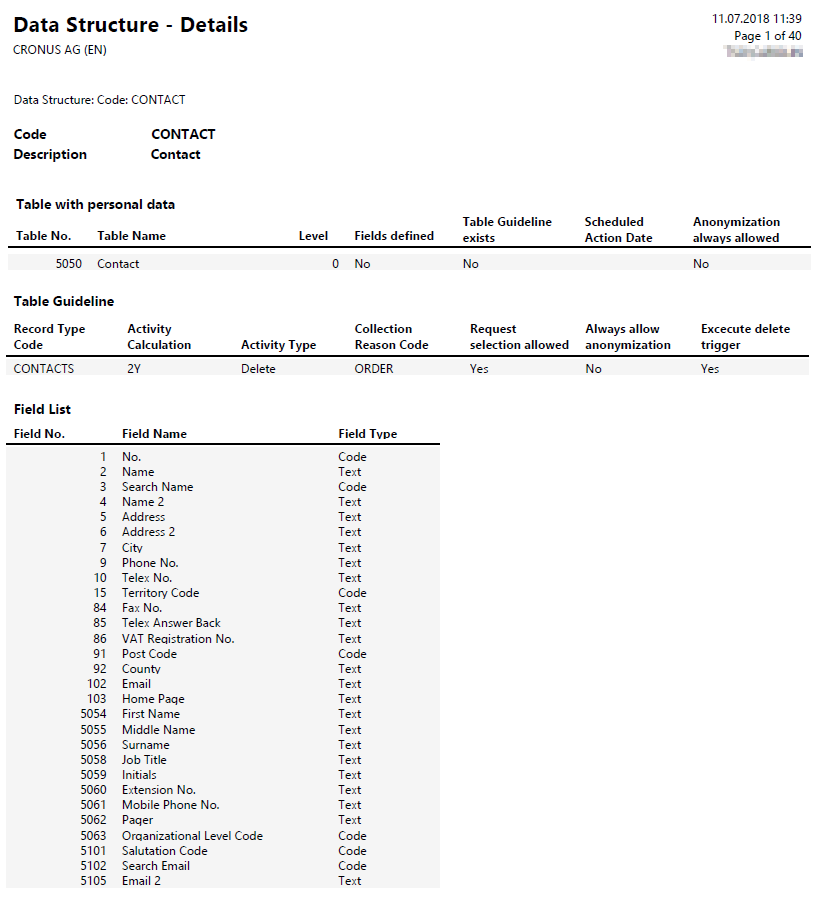
Report data structure details
The configuration of tables and fields with personal content can be evaluated with the help of the provided report "Data structure details". This report can be called directly from the view of the tables for the respective data structure.

Data Collection Reason
The legal reasons for the collection of the data can be stored in this table of institutions. The legal reason can be used as a template in the table definition for the personal data.
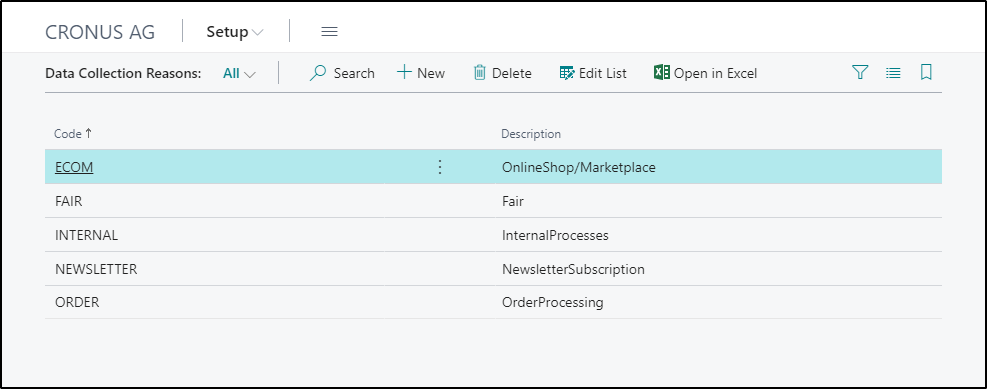
The data collection reasons can be defined in the form of a code and a description and are a prerequisite for the specifications in the data types.
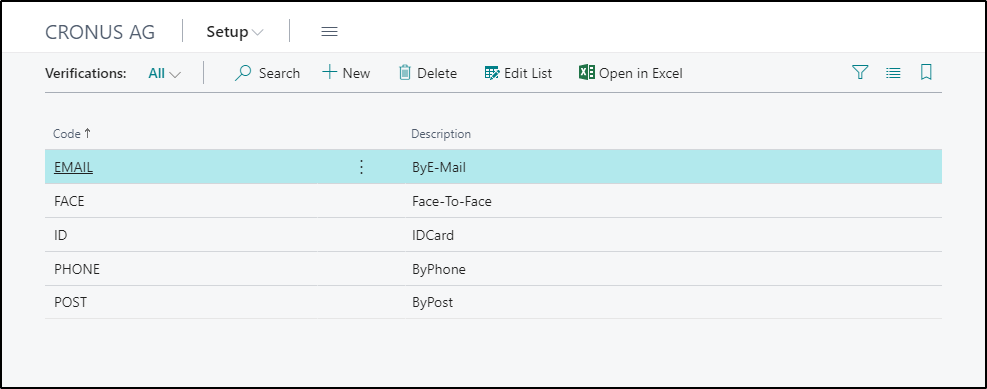
Verifications
The verifications are used in the module area for the inquiries of persons concerned and define the verification of the inquiring person, i.e. by using default values it can be documented how it was checked that the inquiring person is actually the person who claims to be. This verification process is currently not supported by a procedure within the GDPR Toolbox, but only by documenting the result of a verification.
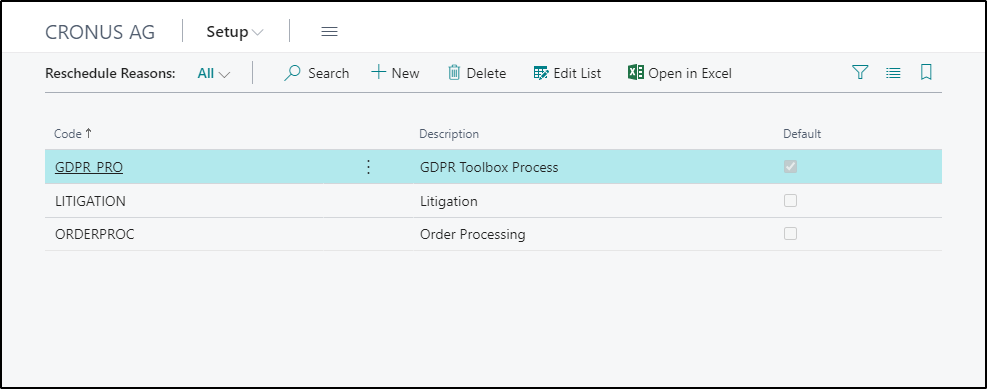
Reschedule Reasons
These reschedule reasons are used to document the manual or automatic shifts of planned actions.
Data Source Codes
The origin of a data record, such as a contact, can be documented when the data record is created. This allows you to answer the question about the origin of the data when an enquiry is made by a person concerned. The corresponding table "Data Source Codes" defines the possible selection of origin codes with the values Code and Description. In addition, a flag can be activated in the "Campaign" field that activates the additional Source Campaign Field in the GDPR Details view, e.g. for the contact. In this field you can specify then the specific campaign through which the contact was made.
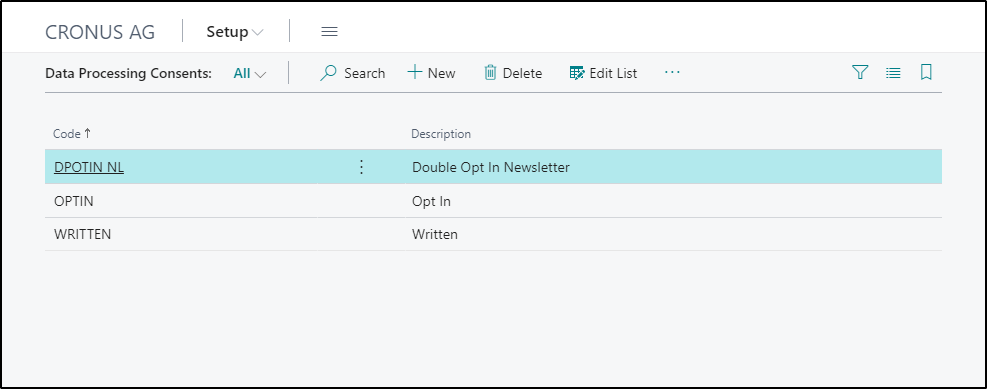
Data Processing Consents
The GDPR requires the consent of the data subject for the collection and processing of the data. This table defines the possible declarations of consent that the user can select when creating or editing master data.
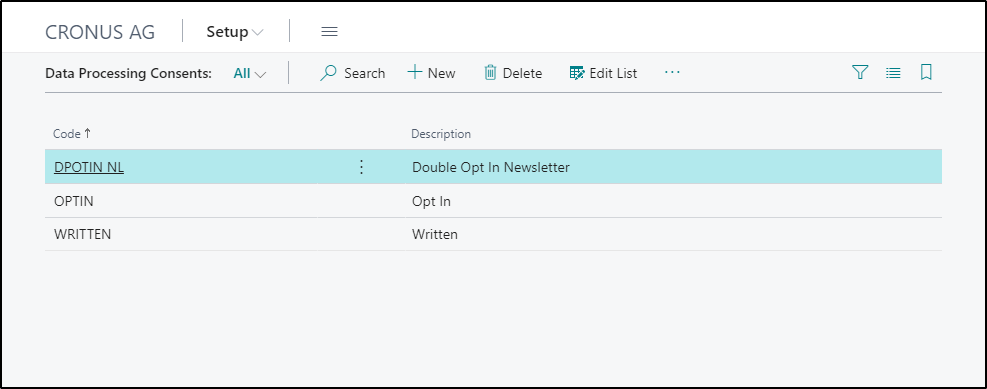
The consents can be filed for contact and used for inquiries from data subjects and can be used for the answers to the question "When and in what form did I give my consent to the processing of the data".
Process Purposes
In addition to the Data Processing consents, the planned processing purposes are also deposited. These are defined in the respective declaration of consent and added to the contact when the declaration of consent is issued. This view defines the possible processing purposes.
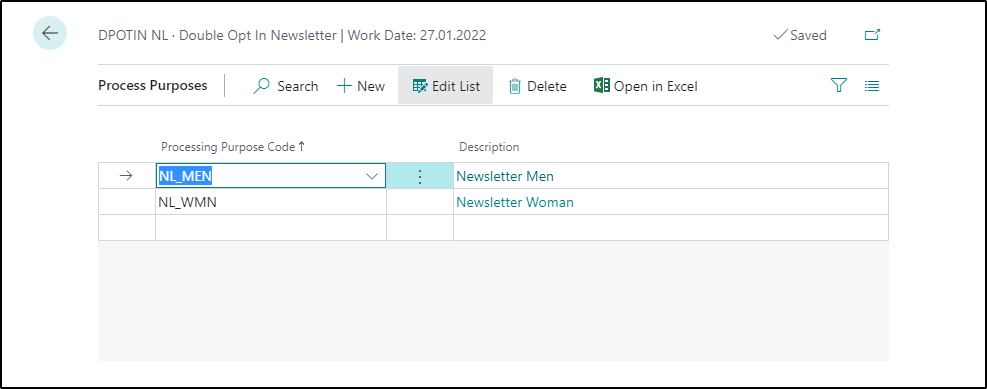
These processing purposes can be included in the consent forms and are automatically added to the contact when the consent is documented. The following view shows the guidelines for the processing purposes for the e-mail declaration of consent.
If, for example, a contact withdraws its Data Processing consents, the corresponding processing purposes will also be removed.
Import GDPR details and declarations of consent
Existing or historical declarations of consent, as well as GDPR details can be imported via two separate tables. This data is maintained in the GDPR setup under Actions > Import GDPR Details or Actions > Import Consent. The processing takes place by a further task queue. This can also be achieved in the GDPR Setup under Action > Process Import Details and Consents
User Permissions
The user permissions for the users of the GDPR Toolbox are defined in three groups. These groups and the corresponding authorization records define a proposal for the authorizations to map typical tasks of the different user groups of the GDPR Toolbox. The definition of the task area for the respective user group can vary depending on the company, so that extensions and adjustments must be made to the authorizations described here and this institution is not legally binding and does not claim to be complete.
Basic User
For this user there is an authorization set "GDPR-BASIC" - this is assigned to all users who have to access tables with personal contents or read the setup of the GDPR Toolbox and is comparable to the standard authorization set "BASIC".
In order to set up a user in the Order Entry area to the extent that they can perform functions such as contact creation, customer creation, order entry and posting, a Standard Business Central database must have at least the following authorization record setup for this user.

GDPR Officer
The authorization record "GDPR-OFFICER" has been provided for the officer who has to record and process the requests from the persons affected. To perform the usual tasks of the agent, the users must be assigned at least the following authorization records.
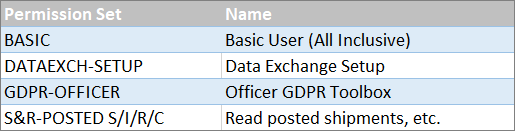
The rights to information and export can be mapped in this permissionset - not the rights, e.g. to data correction. To do this, it may be necessary to assign additional permission records from the standard authorization records.
GDPR Administrator
For users who have to set up the GDPR Toolbox, the "GDPR-SETUP" permission set is provided, which enables full access to all relevant tables of the GDPR Toolbox.
The users for setting up the GDPR Toolbox must have assigned the following authorization records.