Installation (Business Central)
This article describes the integration of the GDPR Toolbox based on Microsoft 365 Business Central and requires the corresponding GDPR ToolBox App for the respective Business Central version. These are available on the website via this link you can also download the updates.
App Publishing
Open Business Central Administration Shell as Administrator an enter the following command:
Publish-NAVApp -ServerInstance ‘your BC Server instance’ -Path ‘Path to the TSO-DATA GmbH_GDPR ToolBox_1.10.**.app’
After publishing the app becomes available in the extension management page within Business Central.
Update an existing Installation
Open Business Central Administration Shell as Administrator and uninstall and unpublish the existing Extension with the following command:
Uninstall-NAVApp -ServerInstance ‘your NAV Server instance’ -Name 'GDPR Toolbox'
Unpublish-NAVApp -ServerInstance ‘your NAV Server instance’ -Name 'GDPR Toolbox'
Publish-NAVApp -ServerInstance ‘your NAV Server instance’ -Path '.\TSO-DATA GmbH_GDPR ToolBox_1.10.**.app'
Sync-NAVApp -ServerInstance ‘your NAV Server instance’ -Name 'GDPR Toolbox'
Start-NAVAppDataUpgrade -ServerInstance ‘your NAV Server instance’ -Name 'GDPR ToolBox' -Version 1.10.**
Installation
Open Business Central and navigate to Extension Management. The GDPR ToolBox application located there should not be installed. If it is already installed you can skip the following steps. To install the application, please click on the three dots in the upper right area of the app tile. Then select Install.
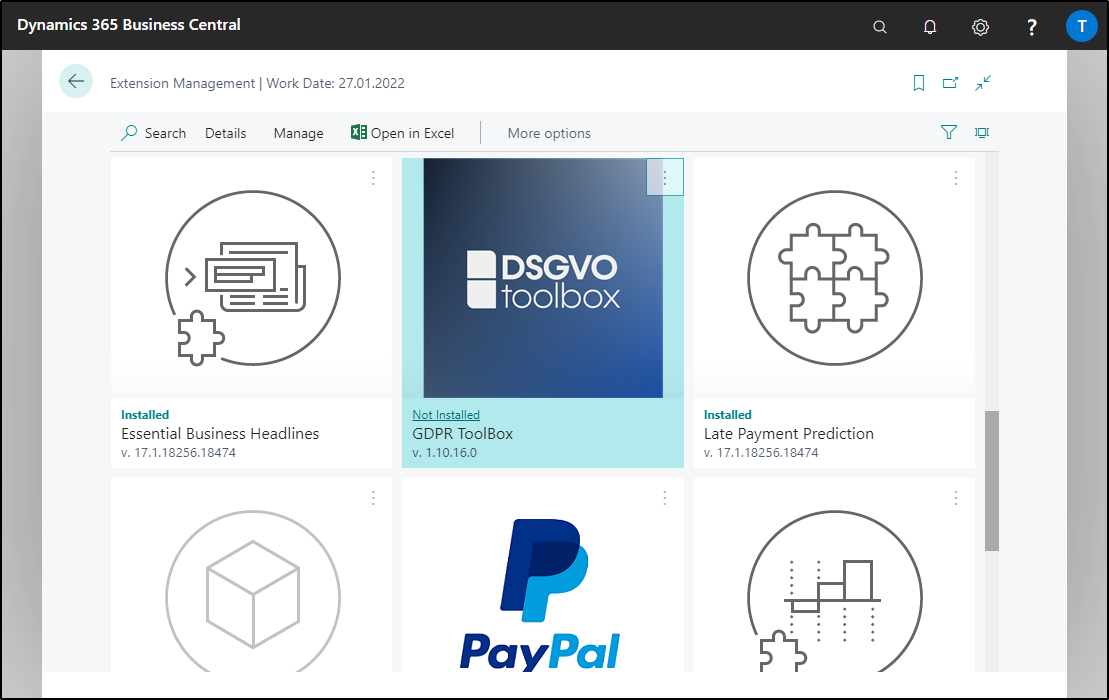
Then click Next. Accept the conditions and complete the installation by clicking Install.
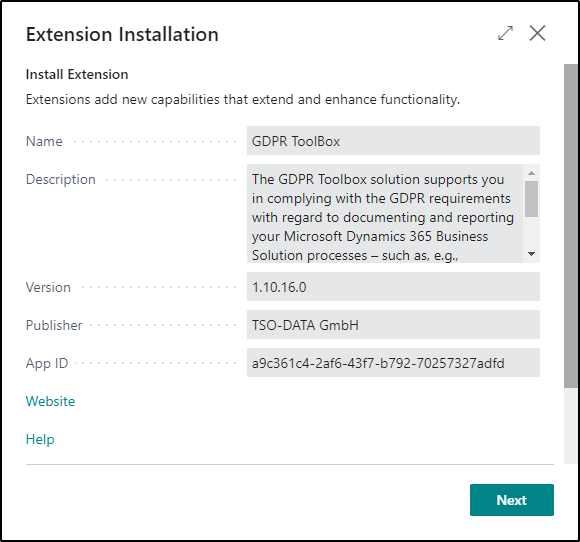
Afterwards, you will need to log out and log back in all active users on the system to see the changes to the navigation.